Open a diagram
Modeler renders diagrams in an editor panel, scoped to the file you are working on, a single element, or a SysML view. This page covers the ways to open that panel and the modes that decide which files a diagram can see; Use diagram panels covers working with the panel once a diagram is on screen.
To visualize your currently open .sysml or .kerml file, you have three options:
Keyboard shortcut: Ctrl+Shift+V for Windows/Linux, Command+Shift+V for macOS
Command Palette: Press Ctrl+Shift+P for Windows/Linux, Command+Shift+P for macOS and search for “Syside Modeler: Visualize current file”
UI Button: Click the Syside logo in the top-right corner and select “Visualize current file”
Diagrams are rendered by the Syside Diagram Engine, the same engine the Modeler CLI uses, so the same view renders the same way in the editor and on the command line. The Tom Sawyer SysMLv2 Viewer that rendered them before remains available as an opt-in alternative.
Note
The visualization reads the saved file, so make sure to save (Ctrl/Cmd+S) before visualizing or refreshing.
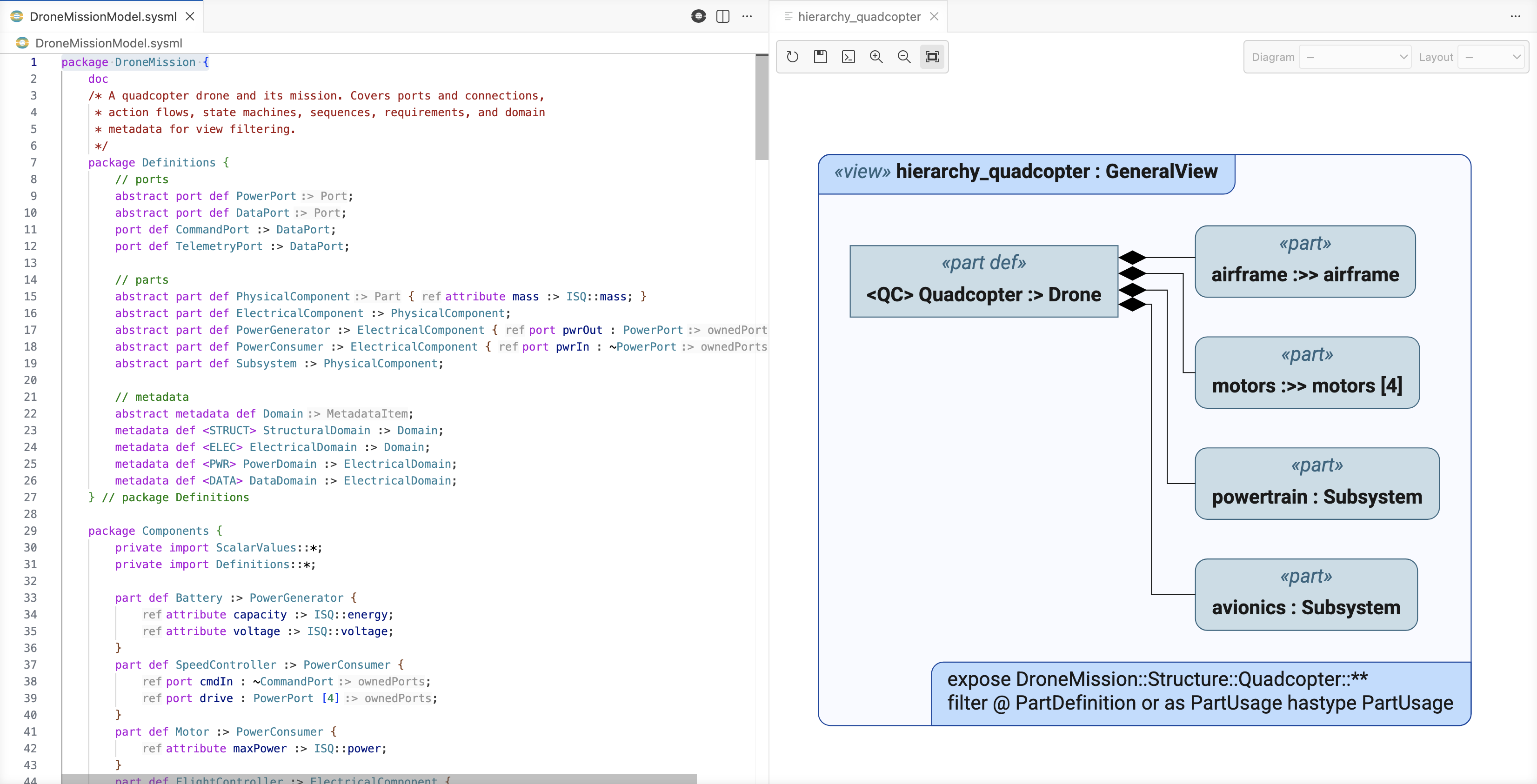
The panel pans, zooms, and can save the diagram to disk; for a single element it also chooses the diagram type and the layout. See Use diagram panels for the toolbar and the pickers, and Diagram views for writing the views themselves.
Model resolution modes
Syside Modeler has three model resolution modes:
Standalone - treats each file as a standalone model. This mode is useful for small models that fit into one file. However, when the model is split into multiple files, this mode might not be able to show some elements correctly and will instead show them as
<placeholder>.Folder (this is the default mode) - treats all the SysML files in the current folder (and its subfolders, like you see on the VS Code explorer view) as a single model. This mode fixes the issue of some elements showing up as
<placeholder>. However, this mode still visualizes only a single file, which means that you will not see elements from other files.Project (upcoming feature) - will work similarly to the Folder mode, but will allow your project to span multiple folders. This would be useful e.g. if you have many SysML libraries imported into your project that do not necessarily live in the same folder that you have opened in VS Code. The limitation of only being able to visualize a single file will still apply.
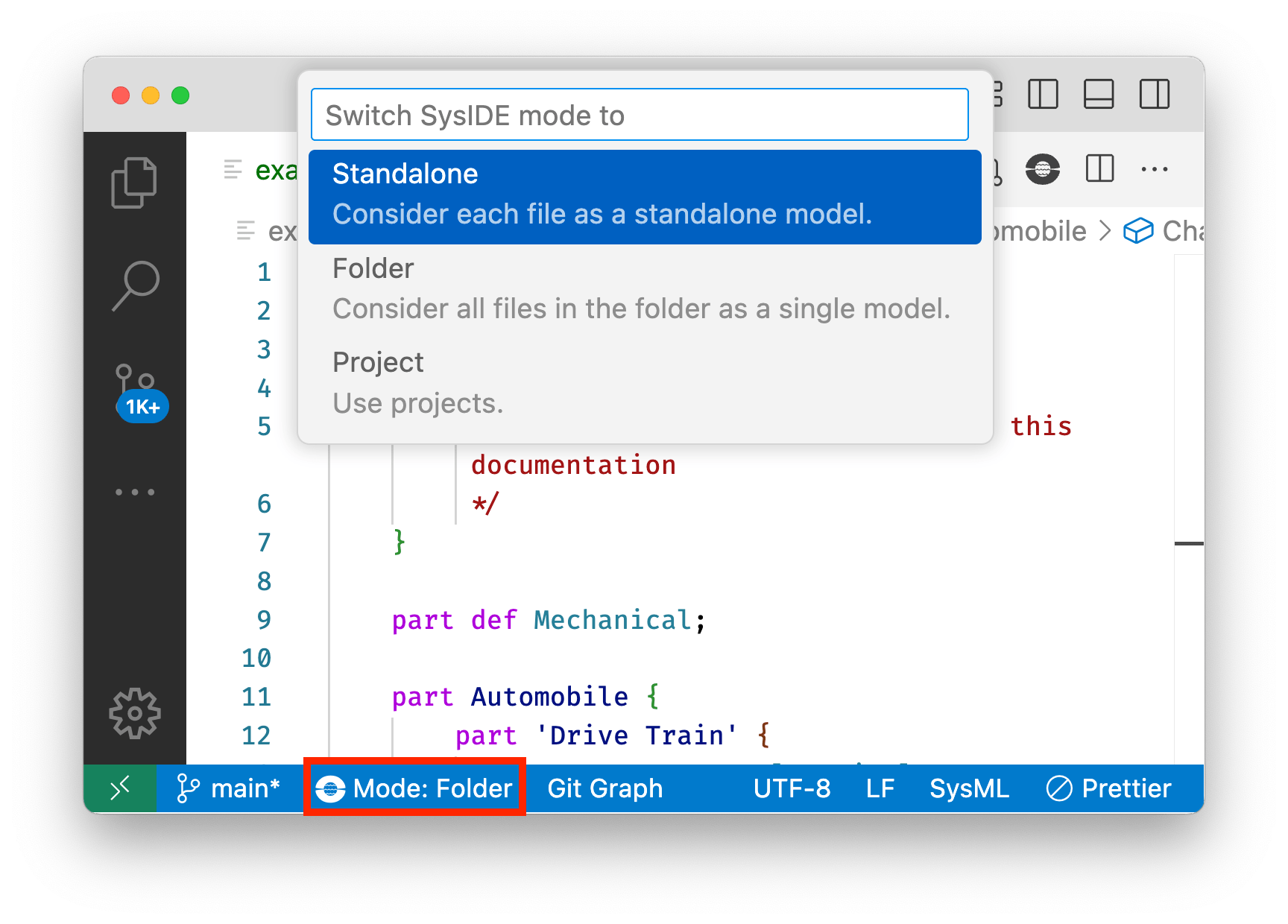
You can change the visualization mode by looking at the bottom of your VS Code window, where you should find a Syside logo with “Mode: Folder” written next to it. Clicking on it will open a quick pick dialog where you can select the desired mode.
Targeted visualization modes
In addition to the modes above, you can visualize specific elements or views directly from the editor:
Tip
You can open multiple visualizations at once. Each element or view opens in its own tab, allowing you to compare diagrams side by side.
Visualize elements Labs - generates a diagram scoped to a specific element and its descendants. You can open it with:
Keyboard shortcut: Ctrl+Alt+E for Windows/Linux, Command+Option+E for macOS
Right-clicking an element in the editor and choosing Visualize element (labs) → As nested diagram or As tree diagram
The shortcut renders whichever layout
syside.modeler.visualization.defaultElementRenderingnames, nested by default; see Settings in the editor.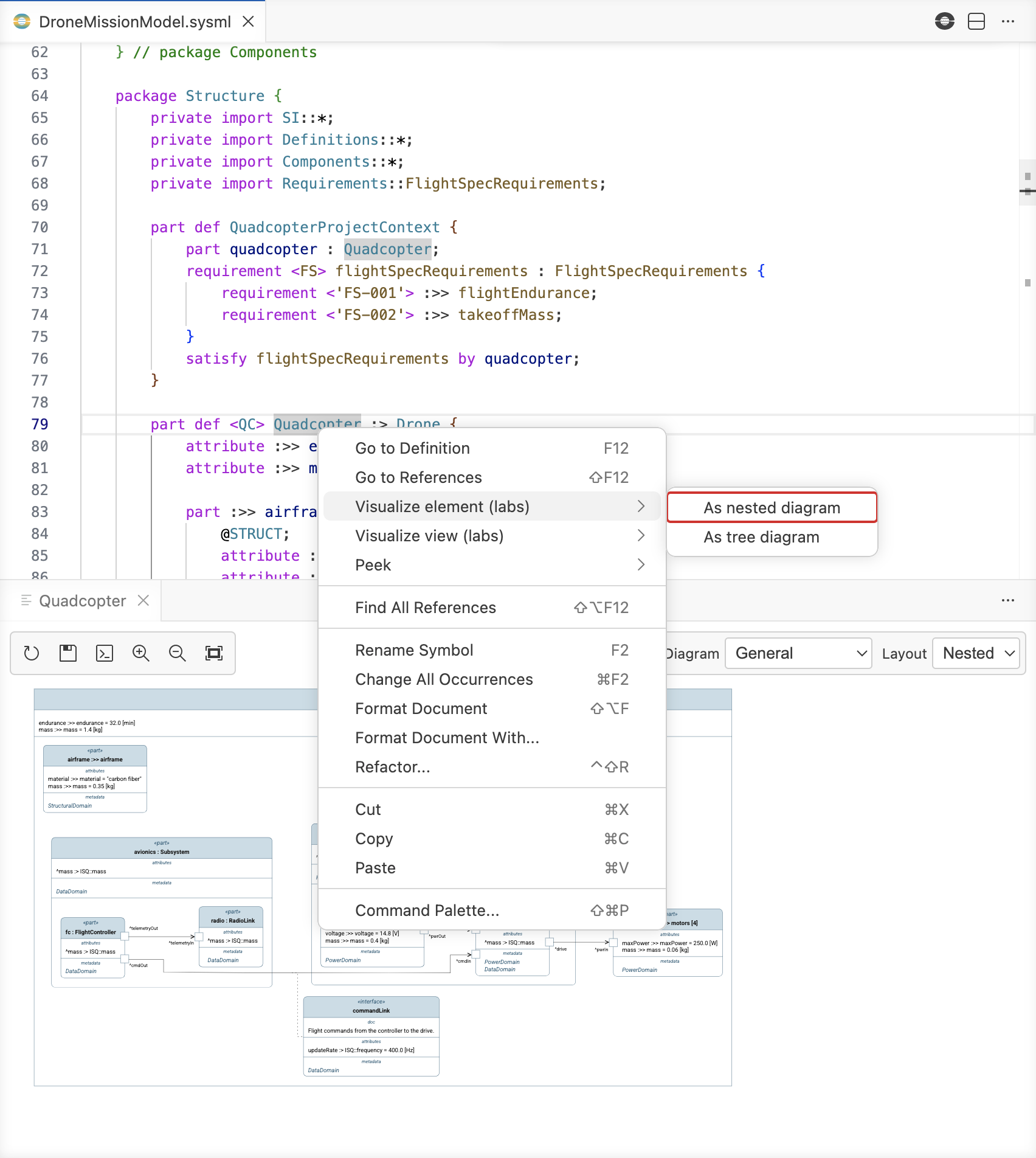
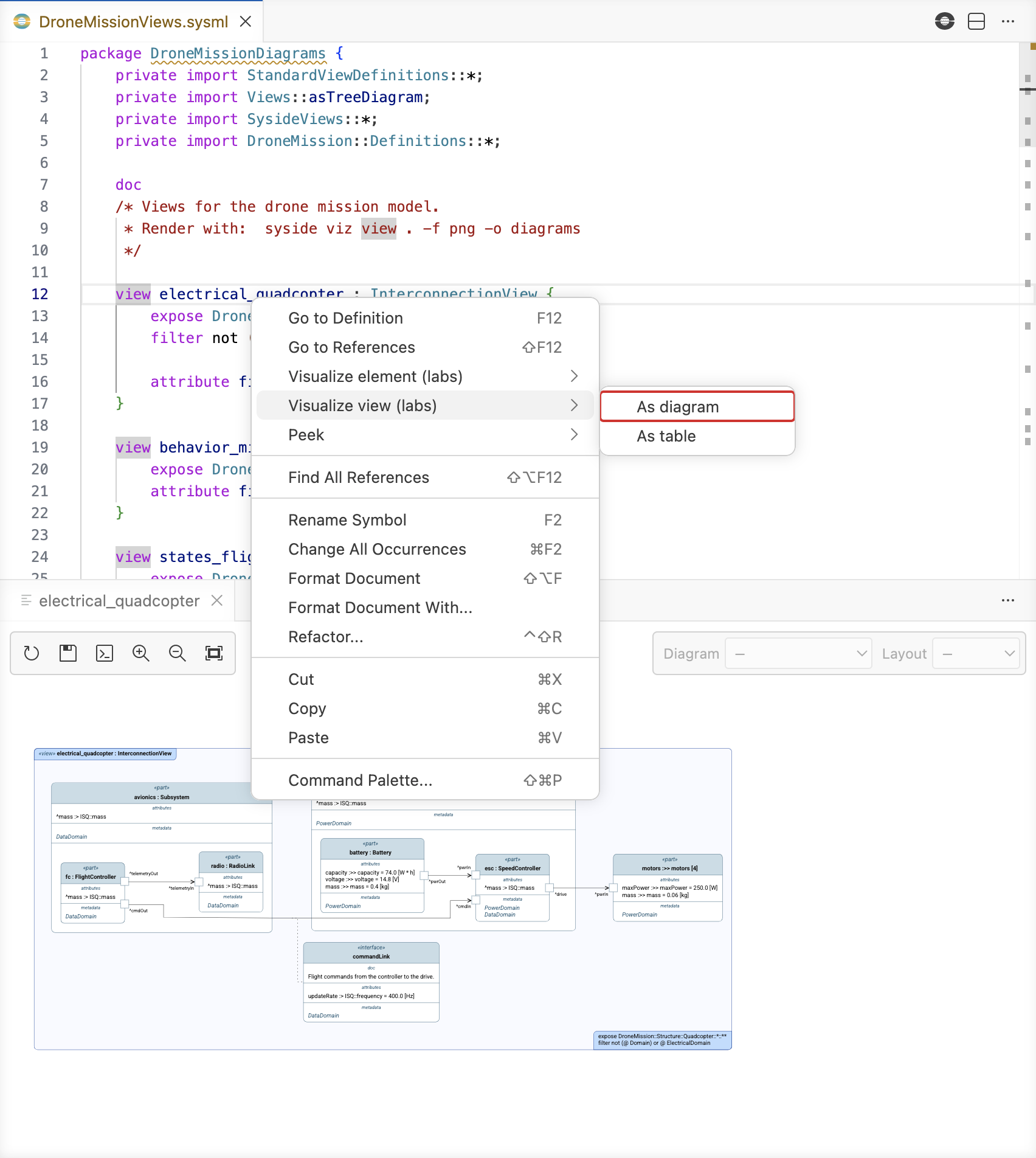
Visualize views Labs - generates diagrams from SysML v2 view definitions in the model, scoped to the view’s exposed elements. Works with models split across multiple
.sysmlfiles. You can open it with:Keyboard shortcut: Ctrl+Alt+V for Windows/Linux, Command+Option+V for macOS
Right-clicking a view definition in the editor and choosing Visualize view (labs) → As diagram
The same submenu’s As table entry opens the view as a grid instead (Open from the Editor).
See Select what a diagram shows for what a view exposes and filters, and Configure diagram views for the diagram kind and the attributes that shape it.