Troubleshooting
Each entry below starts from a symptom you can see. If yours is not among them, the community forum is where Syside users work problems out together.
If you need direct support, please check the Help us help you section for what to include in your report, then email us at syside.support@sensmetry.com.
Installation issues
ModuleNotFoundError: No module named 'syside'
This error occurs when the Syside Python Library & CLI is installed in a virtual environment that hasn’t been activated. To resolve this:
Navigate to the parent folder of your virtual environment in terminal
Run the activation command for your platform, which Activate the environment lists. With uv there is nothing to activate: run the script as
uv run python script.py
import syside then succeeds in that terminal.
The extension does not work under WSL
WSL runs Linux, so the Windows build of the Syside VS Code Extension does not work inside it. Install the Linux version of the extension there instead.
Licensing issues
A feature says “Unlock … with a paid Syside plan”
The extension is running on the free plan: it found no license key in your editor,
the keyring or SYSIDE_LICENSE_KEY, the licensing server rejected the key it found,
or the licensing server could not be reached. Language features keep working, and
the paid features answer with this notification instead, naming the feature, for
example “Unlock diagrams with a paid Syside plan.” The status bar shows
Syside: Free.
Click Activate license on the notification, or Syside: Free in the status bar, and enter your license key, following Activate license. The status bar should change to Syside: Paid, and the feature should work when you run it again.
If activation fails because the licensing servers cannot be reached, follow the next entry. If the status bar shows Syside: Unavailable instead, the license check itself failed, and the Syside output channel has the details.
License activation fails: the license servers are unreachable
Syside activates and validates licenses against keygen.sh, reached directly or through Sensmetry’s proxy. A strict corporate firewall commonly blocks both, which surfaces as failed activation, or as Syside downloads that stall.
Test both endpoints:
# test connectivity to Sensmetry's proxy
curl -i https://keygen.sensmetry.com/api/v1/ping

# test connectivity to the keygen.sh service behind it
curl -i https://api.keygen.sh/v1/ping
A reachable endpoint answers with status 200, as in HTTP/2 200. Anything
else, including a timeout or a connection reset, means the address is blocked.
If either endpoint answers 200, Syside can validate licenses. A persistent activation failure is then something else, so contact syside.support@sensmetry.com. If neither answers:
Ask your IT department to allow Sensmetry’s proxy at
https://keygen.sensmetry.com, and include a link to this documentation. The IP address ofkeygen.sensmetry.comis meant to be34.51.251.77indefinitely.While waiting for approval, request a temporary offline license from syside.support@sensmetry.com. If you already have an offline license, then follow Offline license.
License file cannot be validated
A rejected license file has usually run out, since a file can work for up to a year
from the day it was downloaded, or sits where Syside does not look: the path
in SYSIDE_LICENSE_FILE if that is set, otherwise the place in your home
directory that Import the license file gives. The third cause is a
file written by an outdated version of syside-license. Where the syside-license
tool is installed, see what the file allows and when it stops:
syside-license show license
It prints the license expiry, the date the file stops working offline, the
path it was loaded from, and what it entitles. syside-license show location prints where Syside looks for the file. A file that has run out, or
came from an outdated syside-license, is replaced:
get a new file and
import it again. One lying elsewhere is
moved to where Syside looks. The next import syside or CLI run then
succeeds. If the file is current, in the right place, from a current
syside-license and still rejected, email syside.support@sensmetry.com
with the first eight characters of your license key and the syside-license show license output.
VS Code Extension issues
Help us help you
When reporting an issue, please provide the following information to help us diagnose your problem:
A clear description of the issue you are experiencing
The relevant
.sysmlfile, or files if the model spans severalFor Python library issues, the
.pyscript as well
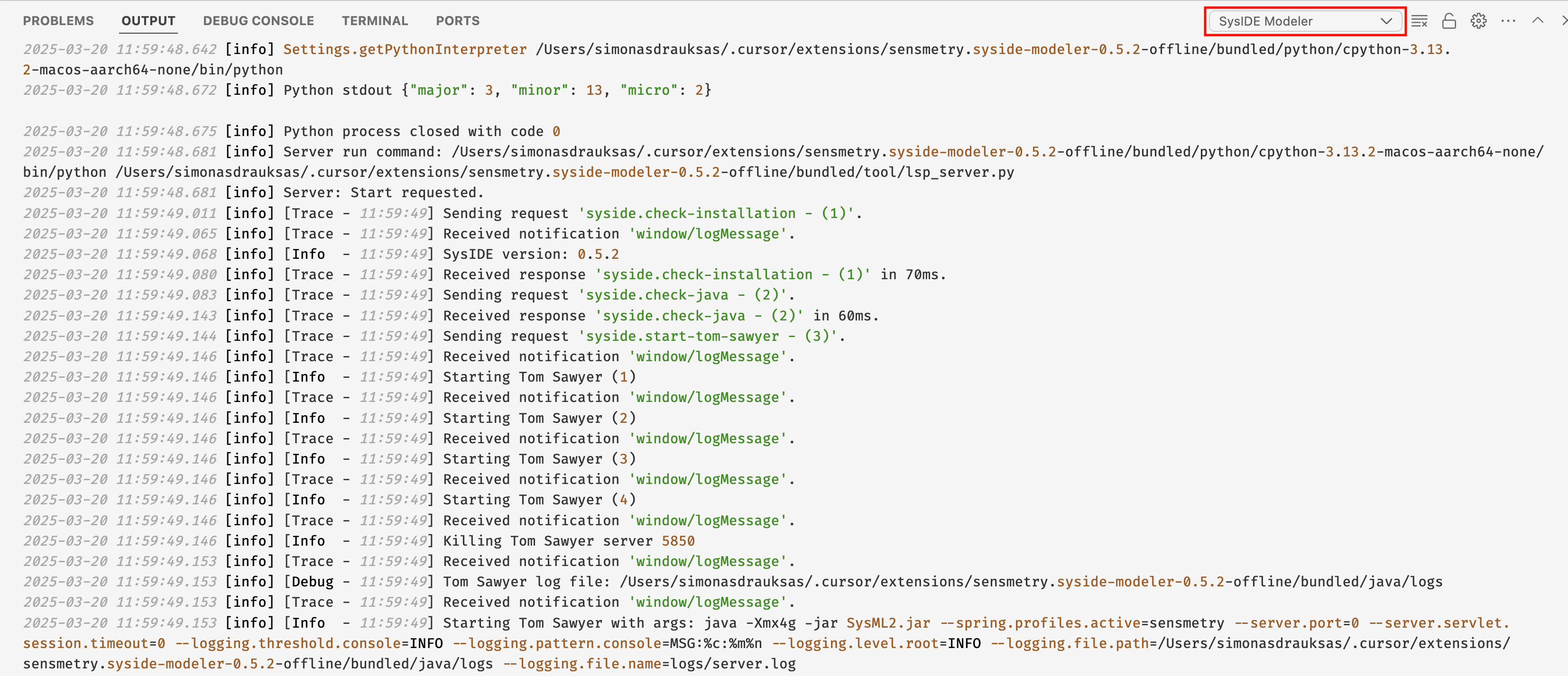
For VS Code Extension issues, please also provide the Syside output log by following these steps:
Open the Output panel:
Press Ctrl/Cmd+Shift+U or
Press Ctrl/Cmd+Shift+P and type “Output: Focus on Output View”
In the Output panel, select “Syside” from the dropdown menu (instead of “Tasks”)
Copy the entire log output and include it in your report
The Output panel and log should look like this: