

Quickstart
This walkthrough validates a small drone model and generates ten diagrams with a single command.
Before You Start
Make sure Modeler CLI is installed and activated
Download and extract the drone mission example model:
Walkthrough
Open a Terminal in the Example Folder
Open a terminal in the extracted drone-mission folder. Most file explorers offer
this in the folder’s right-click menu. Or from an already open terminal:
cd <PATH_TO>/drone-mission
All following commands run from this folder.
Check the Model for Errors
Validation catches broken references and type errors before any diagram is drawn:
If the model had errors, each would be printed with its file, line, and a diagnostic code. Any diagnostic code can be looked up in Validation Rules or with the rule command.
Render All Views
One command renders every view defined in the model:
syside viz view . -f png -o diagrams
Expected result
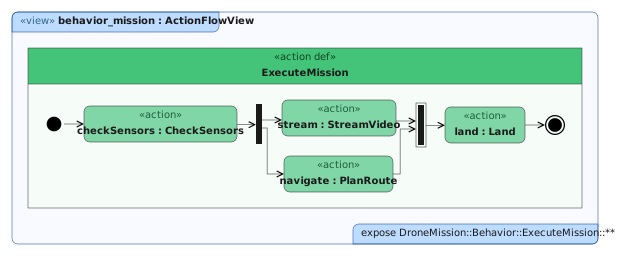
A new diagrams directory containing ten PNG files, one per view defined in
DroneMissionViews.sysml. For example, 02_behavior_mission.png shows the mission
as an action flow:
diagrams/02_behavior_mission.png
Render One View by Name
The -n argument restricts rendering to the views found under the named element. Here
it names a single view:
syside viz view . -o diagrams -n DroneMissionDiagrams::states_flight_modes
Expected result
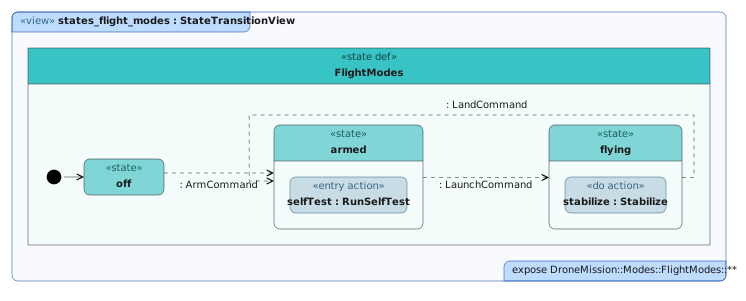
Single named view is rendered to diagrams/03_states_flight_modes.svg, showing the
states and transitions from the model:
state def FlightModes {
    entry;
    then off;

    state off;
    state armed {
        entry action selfTest : RunSelfTest;
    }
    state flying {
        do action stabilize : Stabilize;
    }

    transition first off accept ArmCommand then armed;
    transition first armed accept LaunchCommand then flying;
    transition first flying accept LandCommand then armed;
}
diagrams/03_states_flight_modes.svg
Render an Element Without a View
The viz element command renders any element by qualified name, without view
definitions:
syside viz element . -n "DroneMission::Structure::QuadcopterProjectContext::flightSpecRequirements" -o Requirement_FS.svg
Expected result
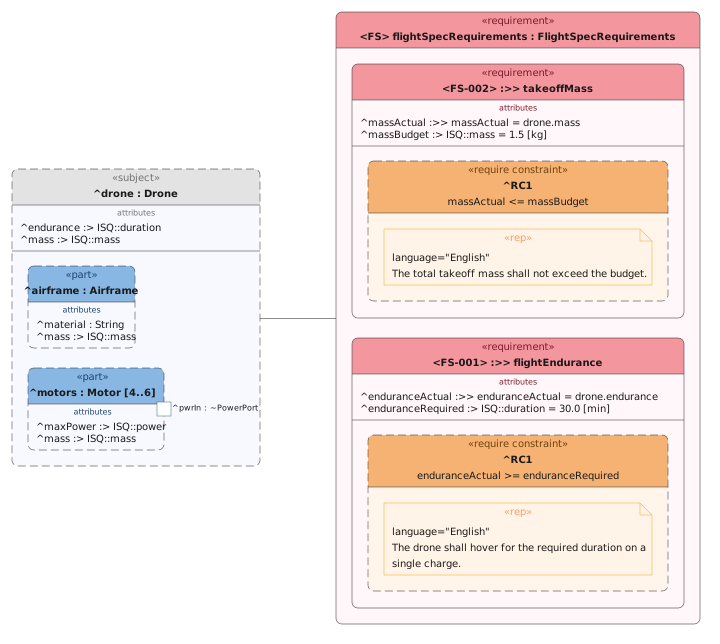
A Requirement_FS.svg file showing the flightSpecRequirements requirement and the
requirements nested in it:
Requirement_FS.svg
Render a View Without Defining It
The viz element command can also act as a view: named elements become the diagram
roots, and -v picks the view kind. Here, it draws the mission handshake as a
sequence diagram:
syside viz element . -n "DroneMission::Interactions::MissionHandshake" -v sequence -o MissionHandshake.svg
Expected result
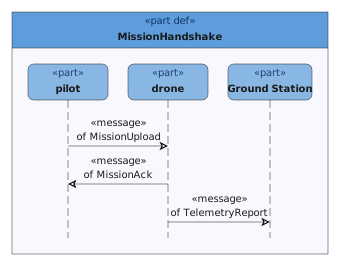
A MissionHandshake.svg file showing the pilot, drone, and ground station exchanging
mission messages:
MissionHandshake.svg
Export a Table to CSV
Grid views export as CSV files instead of diagrams. The model defines one table view listing the flight requirements:
view requirements_table : TVD::TableView {
    expose DroneMission::Structure::QuadcopterProjectContext::flightSpecRequirements::*;
    filter hastype SysML::RequirementUsage;

    view ID :> columnViews {
        attribute :>> featureToRender = CT::reqId;
    }
    view 'Requirement (EN)' :> columnViews {
        attribute :>> featureToRender = CT::constraintLanguage {
            attribute constraintName = "RC1";
            attribute constraintType = CT::CL::ConT::required;
        }
    }
}
Each nested view defines one column. Export the table with:
syside table export . -o tables
Expected result
A tables/table-requirements_table.csv file, ready to open in a spreadsheet:
ID,Requirement (EN)
FS-001,"The drone shall hover for the required duration on a
single charge."
FS-002,The total takeoff mass shall not exceed the budget.
See the table command for the export reference.
Troubleshooting
The syside command is not recognized
The CLI is not on the PATH. The message is syside: command not found, or
'syside' is not recognized on Windows. Revisit the installation steps.
An error mentioning the license
The license is not activated on this machine. See Activate License.
Errors about missing files or views
The terminal is not in the extracted drone-mission folder. Reopen the terminal
there.
For other issues, see Troubleshooting.
What’s Next
Diagram Generation - Rendering workflows and examples
CLI Commands - The full reference for every command and flag
Diagram Views - Authoring views for repeatable diagrams
Configure Modeler CLI -
syside.tomldiscovery and settingsSysML v2 Diagram Coverage - Examples of supported diagrams