
Troubleshooting
This guide covers common issues you may encounter while using Syside tools. If your issue isn’t listed here, visit our community forum to get help and share solutions with other users.
If you need direct support, please check the Help us help you section for what to include in your report, then email us at syside.support@sensmetry.com.
Installation Issues
ModuleNotFoundError: No module named ‘syside’
This error occurs when Automator is installed in a virtual environment that hasn’t been activated. To resolve this:
Navigate to the parent folder of your virtual environment in terminal
Run the command based on your OS
Installing Syside on WSL: use the Linux version of Modeler
If you are using Windows Subsystem for Linux (WSL), you need to ensure that you have the Linux version of Modeler installed. The Windows version of Modeler will not work in WSL.
Syside tools blocked by corporate firewall: allow-list a proxy
In enterprise environments with strict firewall policies, Syside software may fail to download or install because the license service it relies on is blocked (Keygen).
If this happens, we suggest that you ask your IT apparment to allow Sensmetry’s proxy at
https://keygen.sensmetry.com (static IP: 128.140.93.157), and linking back to this
documentation.
You can test connectivity like below:
# test connectivity to sensmetry's proxy
curl -i https://keygen.sensmetry.com/api/v1/ping

# test connectivity to one part of keygen.sh's service
curl -i https://api.keygen.sh/v1/ping
If you need Syside Modeler access while waiting for IT approval, see the Offline Installation guide (requires Business plan license).
Licensing Issues
License Server Connectivity: can’t reach keygen.sh
The license server (hosted at keygen.sh) must be accessible for license activation.
To test your connectivity to the license server, run the following command in your terminal or command prompt:
curl -i https://api.keygen.sh/v1/ping
If the command returns a 200 OK response, similar to the one shown below, your connectivity to the license server is working.
HTTP/1.1 200 OK
Server: Cowboy
[...snip...]
Date: Fri, 04 Apr 2025 13:41:06 GMT
Via: 1.1 vegur
If connectivity fails, try the Sensmetry proxy instead:
curl -i https://keygen.sensmetry.com/api/v1/ping
If neither endpoint is reachable:
Contact your IT department to add
https://keygen.sensmetry.com(static IP: 128.140.93.157) to the allow list.Request a temporary offline license from syside.support@sensmetry.com.
License File Cannot Be Validated: contact support
If the license file cannot be validated, please contact us at syside.support@sensmetry.com.
Modeler Issues
Help us help you
When reporting an issue, please provide the following information to help us diagnose your problem:
A clear description of the issue you are experiencing
The relevant
.sysmlfile or files if the model consists of multiple user docsFor Automator issues, include the
.pyscript as well
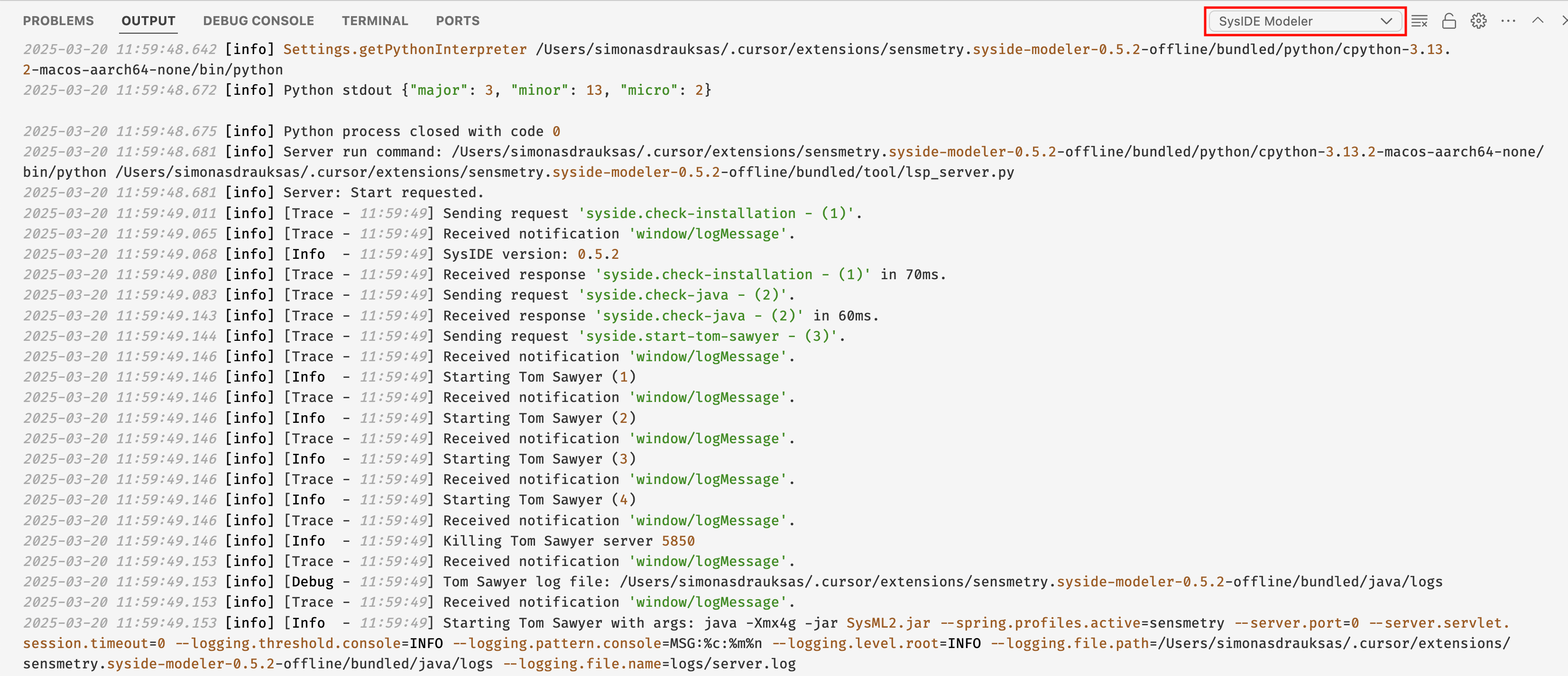
For Modeler issues, please also provide the Syside Modeler output log by following these steps:
Open the Output panel:
Press Ctrl-Shift-U (Command-Shift-U for macOS) or
Press Ctrl-Shift-P (Command-Shift-P for macOS) and type “Output: Focus on Output View”
In the Output panel, select “Syside Modeler” from the dropdown menu (instead of “Tasks”)
Copy the entire log output and include it in your report
Below is an example of what the Output panel and log should look like: