

Diagram views UI
A diagram opens in a panel beside the model it came from. What it draws can be a single element, a whole file, or a view, depending on the entry point you used: see Visualize your model for the three of them. This page covers what the panel offers once a diagram is on screen, which is the same whichever of the three it came from. For writing views, see Select diagram elements and Configure diagram views.
Controls
Drag with the left mouse button to pan the diagram, and scroll to zoom. The toolbar in the corner of the panel holds the rest:

re-renders the diagram from the saved file
writes the diagram as an image, see saving a diagram
copies a command that reproduces the diagram with the viz command of the Syside CLI
and zoom by a step, and fits the whole diagram in the panel
Click an element to select it, and Shift+click to add it to or remove it from the selection. Clicking empty space or re-rendering clears the selection. The panel does not move, hide or drill into elements: the element, file or view you visualized decides what it draws. Select diagram elements covers how a view states what to include, and SysML v2 diagram coverage lists the SysML v2 notation Syside supports.
Diagram type and layout
The Diagram picker chooses the kind of diagram: General, Interconnection, Action flow, State transition or Sequence. The Layout picker arranges children as a tree or nested inside their parents. Changing either re-renders the element, and both choices are kept when the diagram is refreshed or saved.

Both pickers apply to single-element visualizations only. They are grayed out for a view, which states its own diagram type and layout in the model, and for a whole file, where neither applies.
Depth
The Depth control sets how many levels of nested elements the diagram draws. − and + step it by one level, or type a number and press Enter. ∞ draws every level, which is slow on large models. Each change re-renders the diagram.
A single element or a whole file starts at the depth the
syside.visualization.defaultDepth setting gives, 3 unless you change it. A
view starts at the depth it defines in the model, and ↺ returns to that
depth after you change it. The control changes one diagram only: the setting and the
model stay as they are.
Saving a diagram
asks for a name and
location first, then renders: the format follows the extension you choose, one of
.svg, .png or .jpg. Once the file is written, the notification names the full
path and offers Open.
A saved diagram uses the light theme, while the panel follows your VS Code color
theme. A [viz.style].theme set in syside.toml overrides both. The rest of the
[viz] settings apply to these diagrams too, see Diagram settings.
Navigate between diagrams and textual model New in v1.0.0
Every element in a diagram comes from a declaration in a .sysml or .kerml file.
Go to Source jumps from an element in the diagram to
its declaration, and Go to Diagram jumps from the
text to the element in every open diagram.
Go to Source
To open an element’s text from the diagram:
Mouse shortcut: Ctrl/Cmd+click the element
Context menu: right-click the element and choose Go to Source
The editor opens with the element’s text selected.
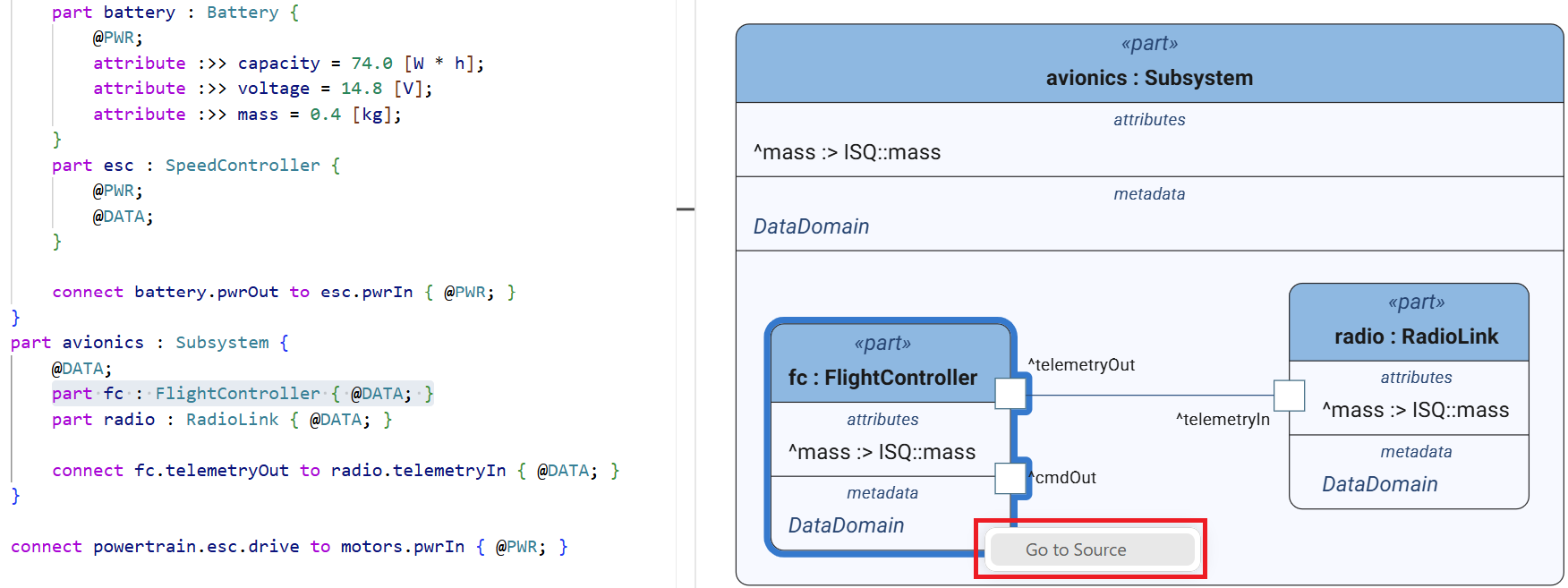
If the file changed after the diagram was drawn, the location may be inaccurate. Save the file and refresh the diagram to get the exact location.
Go to Diagram
With a diagram open, to find the element under the cursor in a .sysml or .kerml
file:
Keyboard shortcut: Shift+Alt/Option+D
Command Palette: Syside: Go to Diagram
Context menu: right-click and choose Go to Diagram
The element is selected and brought into view in every open diagram that draws it.
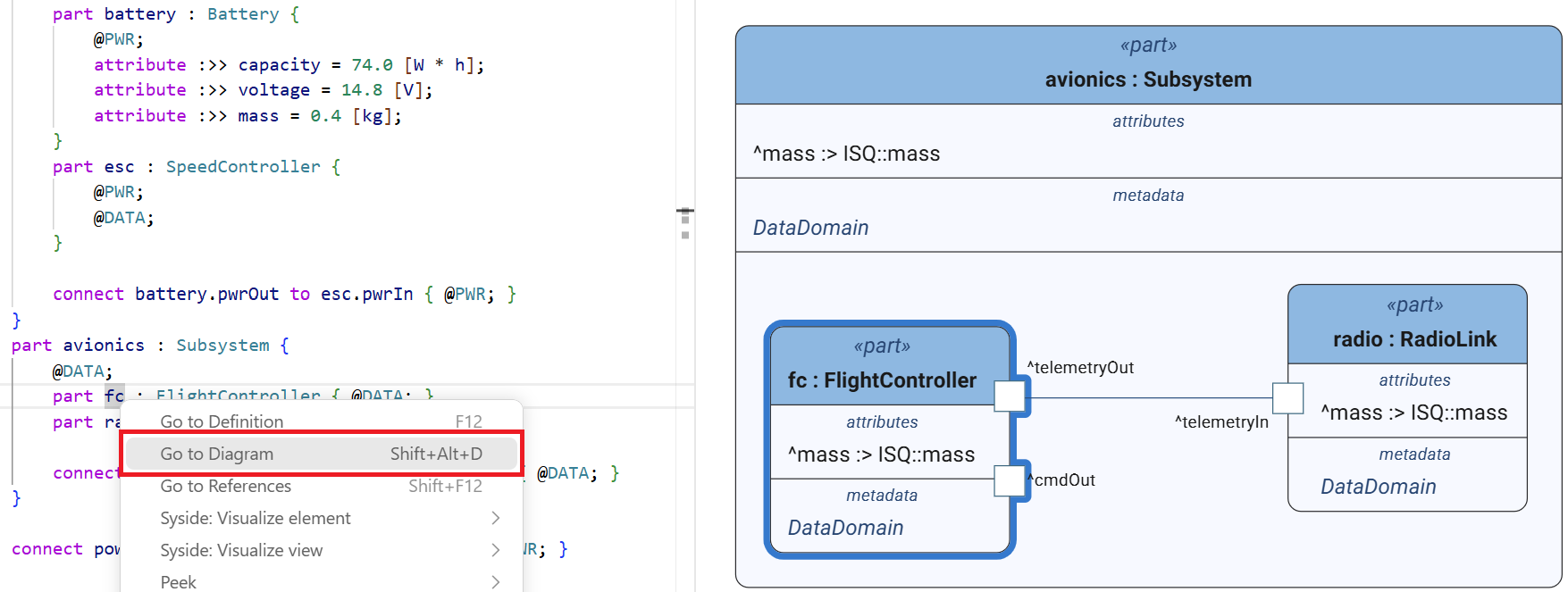
If no open diagram draws the element, save the file and refresh the diagram. If it is still missing, increase the depth or visualize the element itself.