

Write your model
The Syside VS Code Extension activates when a .sysml or .kerml file is open and
runs the Syside language server, the process that reads your files and produces
everything on this page: highlighting, navigation, completion, validation, formatting
and, on a paid plan, inlay hints.
The page assumes you can read a small SysML v2 model. If
you are new to the language, Advent of SysML v2, a free
25-lesson course, teaches it.
The features below are all shown on the same small model, a basic automobile with
electrical and mechanical parts. Create a new file named example_model.sysml and
paste the model in, or use a model of your own:
package 'Part Tree Example' {
    part def Electrical {
        doc /*
             * Electrical parts have this documentation
             */
    }

    part def Mechanical;

    part Automobile {
        part 'Drive Train' {
            part Battery : Electrical;
            part Motor : Electrical;
        }

        part Chassis {
            part Suspension : Mechanical;
            part Body : Mechanical;
        }
    }
}
Semantic highlighting
In light-theme, highlighted textual notation may look similar to this:
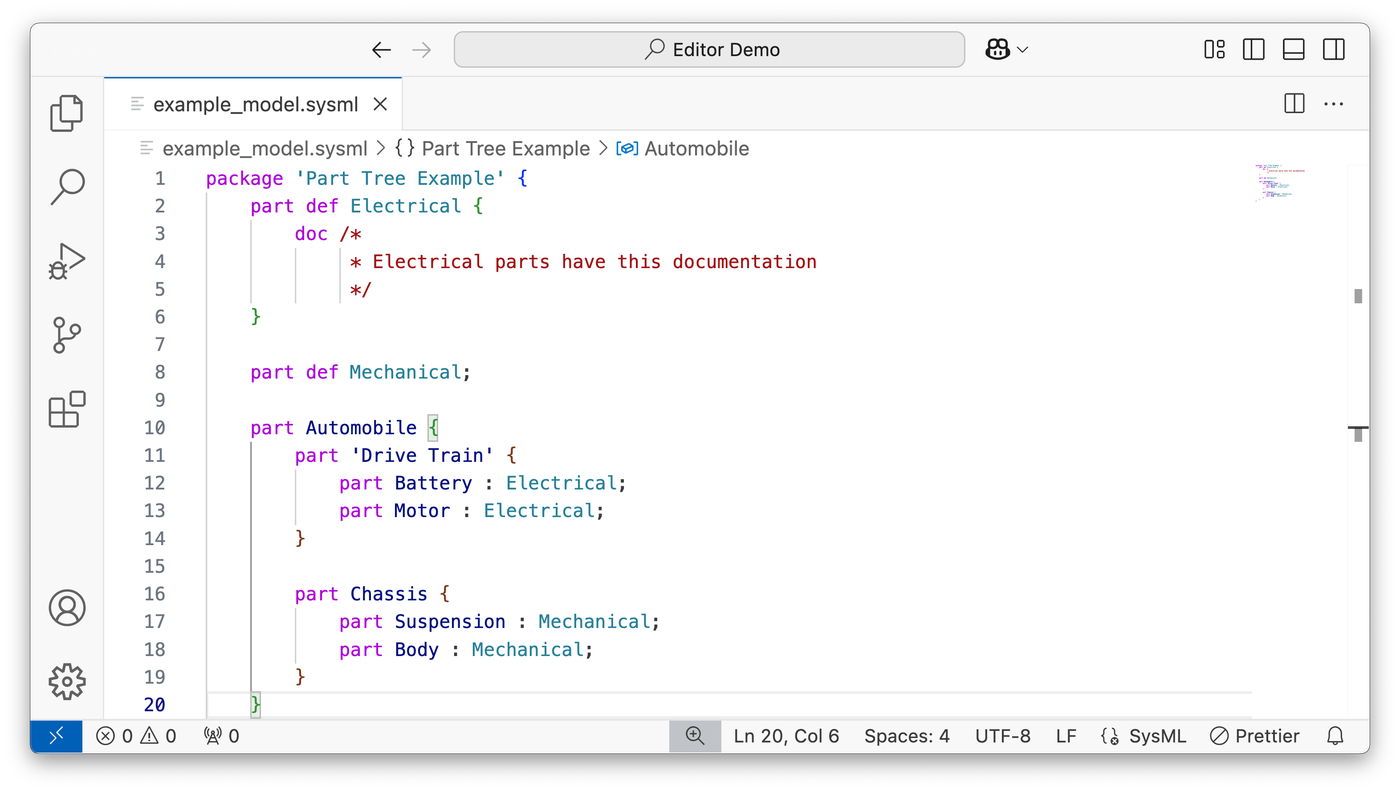
SysML v2 keywords – such as package, part or def – are highlighted in
pink. If a part is given a name that is also a reserved keyword in SysML v2, such as
frame, two things will happen:
The word
framewill be highlighted.The editor will show a red underline and highlight, indicating an error, together with an error message.
Additionally, Syside language server highlights Definitions and Usages in
distinct colors, enhancing the ability to quickly identify various semantic elements.
Warning
Dark (Visual Studio) and Light (Visual Studio) themes do not support semantic
highlighting. To ensure proper highlighting, use a modern theme such as Dark+ or
Light+. You can change the theme using the Preferences: Color Theme command.
More information about themes can be found on VS Code documentation.
Documentation on hover
Syside language server understands links between SysML v2 elements and uses this to
provide documentation on cursor hover. This is useful for quickly accessing information
about a certain model element without having to necessarily navigate to it. Try it out
by hovering over the word Battery in the example model – a tooltip like this
appears:
Syside language server takes the documentation (the doc keyword) from either:
The focused element, if it has any documentation defined;
The first (most specific) explicitly or implicitly specializing type that has documentation.
If the element or specializing type has multiple documentations, they will be grouped together.
Hover functionality is useful for quickly inspecting how a certain element is defined without needing to navigate to the location of the definition, which could be in an another file entirely! Syside language server takes the whole model into account.
Tip
You can use Markdown formatting in your documentation text and the applied formatting will show up during Hover!
Document outline
The Outline view lists every element in the file you have open. To open it:
Click Explorer in the left sidebar (Ctrl/Cmd+Shift+E)
Expand the Outline section at the bottom of the sidebar
Click any element in the outline to jump directly to its location in the editor. You can collapse the Folder section to give the Outline more space.
Folding
Use folding to hide nested elements and make large models more manageable. Hover next to any element to reveal the fold arrow:
Click the arrow to fold/unfold the element. You can also use the Command Palette (Ctrl/Cmd+Shift+P) to find the ‘Toggle Fold’ command and its keyboard shortcut.
Auto completion
Syside language server provides intelligent code completion for both SysML v2 keywords and your model elements. To try it out:
Start typing “pack” to see keyword suggestions
Press Tab to accept a suggestion
When importing elements, the editor suggests existing package names and automatically adds the required quotes:
Validation
Syside language server continuously validates your model as you type. Try copy-pasting this example after your model into the same file:
package Test {
    import 'Part Tree Example';
}
The editor will show an error because import does not have an explicit visibility as
mandated by SysML v2 2024-09 and newer. Hover over the red underlined text to see the
error message. To comply with specification, add private before
import. Syside language server once again checks the model for errors automatically
but does not find any this time.
See Validation rules for every rule Syside checks, including which apply to KerML, which to SysML, and which are configurable.
Auto formatting
Syside language server can automatically format your model to maintain consistent style. To enable automatic formatting:
Open settings with Ctrl/Cmd+Comma
Search for “Editor: Format On Save” and enable it. Alternatively, use the
"editor.formatOnSave": trueconfiguration option.
You can also format selected code by right-clicking and choosing “Format Selection”.
The formatter supports ignore directives to let you preserve specific formatting for
sections of your models.
An example of such an directive is shown below:
package P {
    part def PartDef;

    // syside-format ignore
    part 'hand formatted' : PartDef {
}
}
The directive leaves the next element’s formatting as you wrote it. The rest of the file is still formatted.
Inlay hints
SysML v2 models contain extensive implicit state (implied specializations, default
visibilities, effective names, and so on) that is hard to track while reading or
editing source. On a paid plan, Syside displays this state
as inlay hints: virtual text inserted into the editor that is not part of the file
itself. Hints appear automatically when you open a .sysml or .kerml file.
Inlay hints for missing import visibility also provide a text edit: double-click the hint to insert the keyword into the source.
Each category of hint can be toggled independently in syside.toml; see the
lsp.inlay-hints table for the full list of options.
Tip
In Visual Studio Code, set editor.inlayHints.enabled to onUnlessPressed or
offUnlessPressed to flip all hints on or off at the press of a button. The
default shortcut is Ctrl+Alt/Option. See Inlay
Hints for
details.
From here, Visualize your model shows the diagrams drawn from the same text, and Configure the extension covers where settings live and what takes priority when two places set the same option. To learn more of the language than this page uses, continue with Advent of SysML v2.