

Install the VS Code Extension
The Syside VS Code Extension installs into Visual Studio Code or a compatible
editor from a .vsix file, which you download here with your license key. The
file carries everything the extension needs, so it makes no further downloads
once installed.
Install extension
Enter your license key and download the Syside VS Code Extension for the machine that will run it (the download may take a few seconds to start)
Open your editor
Click Extensions in the left sidebar (Ctrl/Cmd+Shift+X)
Drag and drop the downloaded
.vsixfile onto the Extensions viewAlternatively, open the Command Palette (Ctrl/Cmd+Shift+P), run Extensions: Install from VSIX…, and select the file
Activate license
The extension runs with a license, so enter the key you downloaded it with. It checks the license with our licensing servers as you work.
Open the Command Palette (Ctrl/Cmd+Shift+P) and run Syside: Check Syside license
A prompt for your Syside license key should open:

Enter your license key and press Enter
A confirmation message should appear:
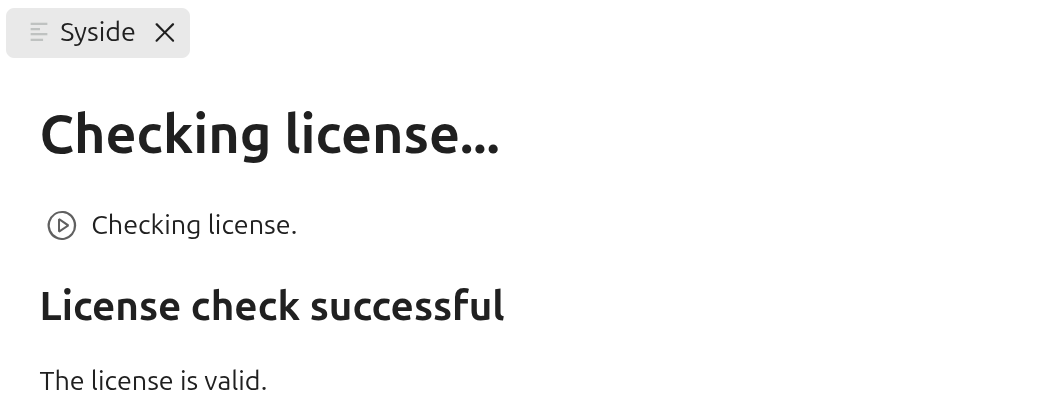
When it fails, an error message appears instead. Check the key and try again, and if it keeps failing, see Troubleshooting.
Open the Command Palette (Ctrl/Cmd+Shift+P) and run Syside: Add Syside license key to keyring
This stores the key in your operating system’s secret storage, where Python Library & CLI finds it too, so the key is entered once per machine.
On a machine that cannot reach our licensing servers, import a license file instead: Offline license covers getting, carrying over and importing it.
Licensing covers how the license is validated, and What data we collect lists what is sent and what you can turn off.
Verify installation
Check that the extension flags an error:
In your editor, save this as
example.sysml:package Example { part def Electrical; part Automobile { part Motor : Electricall; } }
You should see an error highlighted and listed in the Problems panel (Ctrl/Cmd+Shift+M):
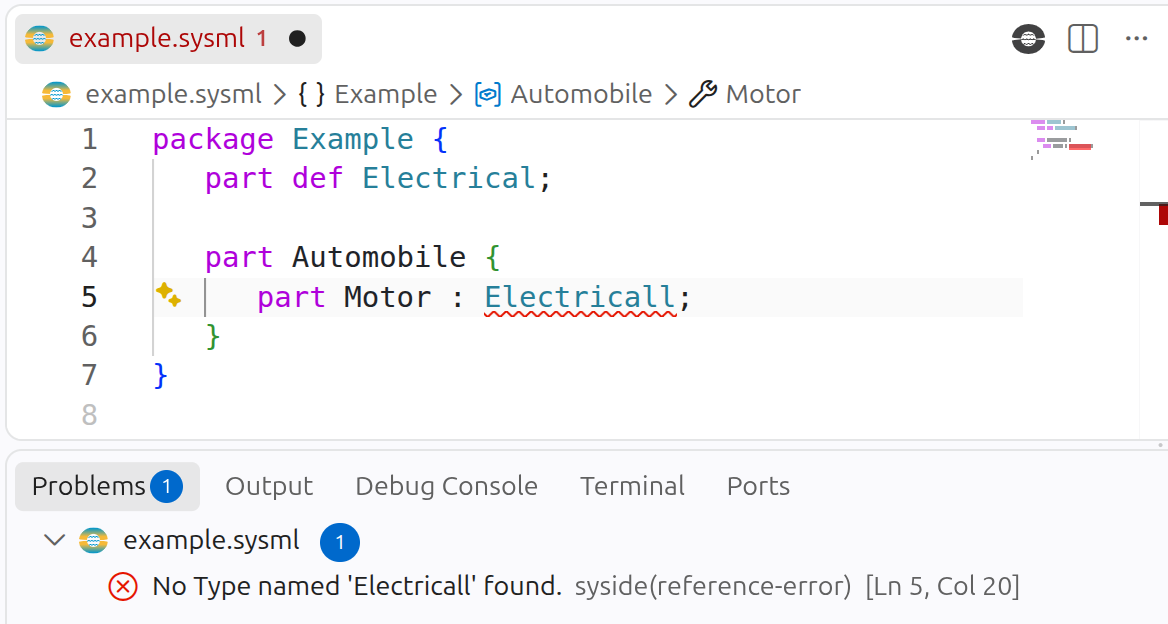
Correct the spelling to
Electricaland saveThe error should disappear.
Then check that the diagrams work: with example.sysml open, click the
Syside logo (top right) and select Syside: Visualize current file
(Ctrl/Cmd+Shift+V). A diagram of the model should open:
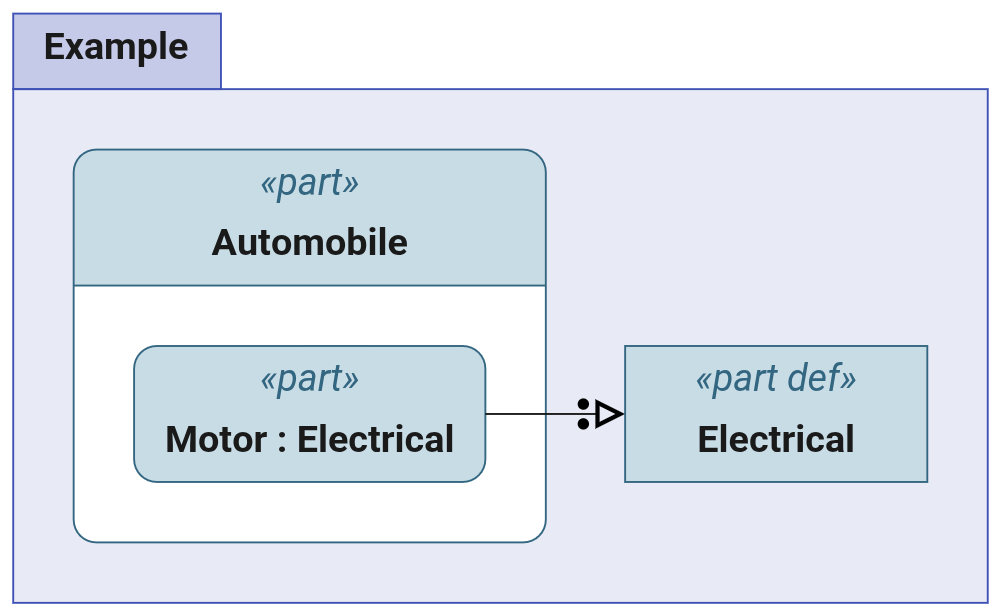
Continue to Write your model, or start at Troubleshooting if something did not work.
Update the extension
The extension does not update itself. To update, repeat the installation steps with the latest version. Updating keeps your license activation and your settings.
Minimum requirements
Windows 10 or newer, 64-bit (for older versions, install Windows UCRT)
An editor to host the extension: Visual Studio Code (recommended), Cursor, or VSCodium
Internet connection, or an offline license
macOS 11.0 or newer on Apple silicon, or macOS 10.15 or newer on Intel
An editor to host the extension: Visual Studio Code (recommended), Cursor, or VSCodium
Internet connection, or an offline license
Linux x64 distribution with GNU C Library
glibc >= 2.31Check yours with
ldd --version. The first line ends with the glibc version, as inldd (Ubuntu GLIBC 2.39-0ubuntu8.8) 2.39.An editor to host the extension: Visual Studio Code (recommended), Cursor, or VSCodium
Internet connection, or an offline license