Visualize your model
The extension renders diagrams in an editor panel, scoped to the file you are working on, a single element, or a SysML view. This page covers the ways to open that panel, and Diagram views UI covers working with the panel once a diagram is on screen.
To visualize your currently open .sysml or .kerml file, you have three options:
Keyboard shortcut: Ctrl/Cmd+Shift+V
Command Palette: Press Ctrl/Cmd+Shift+P and search for Syside: Visualize current file
UI Button: Click the Syside logo in the top-right corner and select Syside: Visualize current file
Syside renders the diagrams, and SysML v2 diagram coverage lists the SysML v2 notation it covers.
Note
The visualization reads the saved file, so make sure to save (Ctrl/Cmd+S) before visualizing or refreshing.
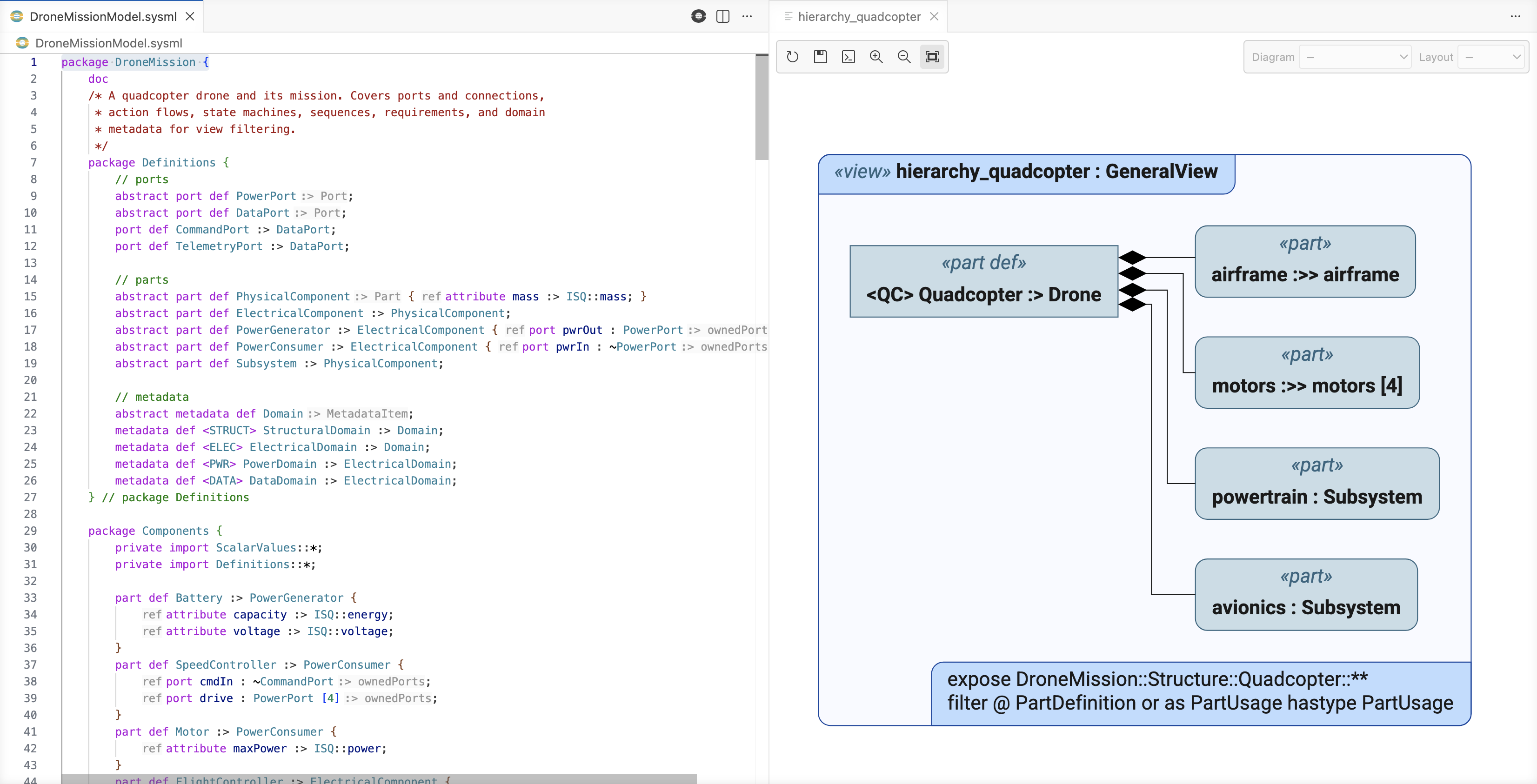
The panel pans, zooms, jumps to an element’s text, and can save the diagram to disk. For a single element it also chooses the diagram type and the layout. See Diagram views UI for the toolbar, the pickers, and moving between a diagram and its text. See Configure diagram views for writing the views themselves.
Files in a diagram
The extension treats the open folder, with its subfolders, as one model, so references between files resolve in every diagram. Syside: Visualize current file still draws only the elements declared in the current file. The element and view entry points below draw whatever they select, from any file.
Changed in version 1.0.0: The Syside: Change Mode command and the Mode status bar item are removed. The open folder is always one model, as in the former default Folder mode.
Visualize one element or a view
You can also visualize specific elements or views directly from the editor:
Tip
You can open multiple visualizations at once. Each element or view opens in its own tab, allowing you to compare diagrams side by side.
Visualize elements - generates a diagram scoped to a specific element and its descendants. You can open it with:
Keyboard shortcut: Ctrl/Cmd+Alt/Option+E
Right-clicking an element in the editor and choosing Syside: Visualize element → As nested diagram or As tree diagram
The shortcut renders whichever layout
syside.visualization.defaultElementRenderingnames, nested by default. See Settings in the editor.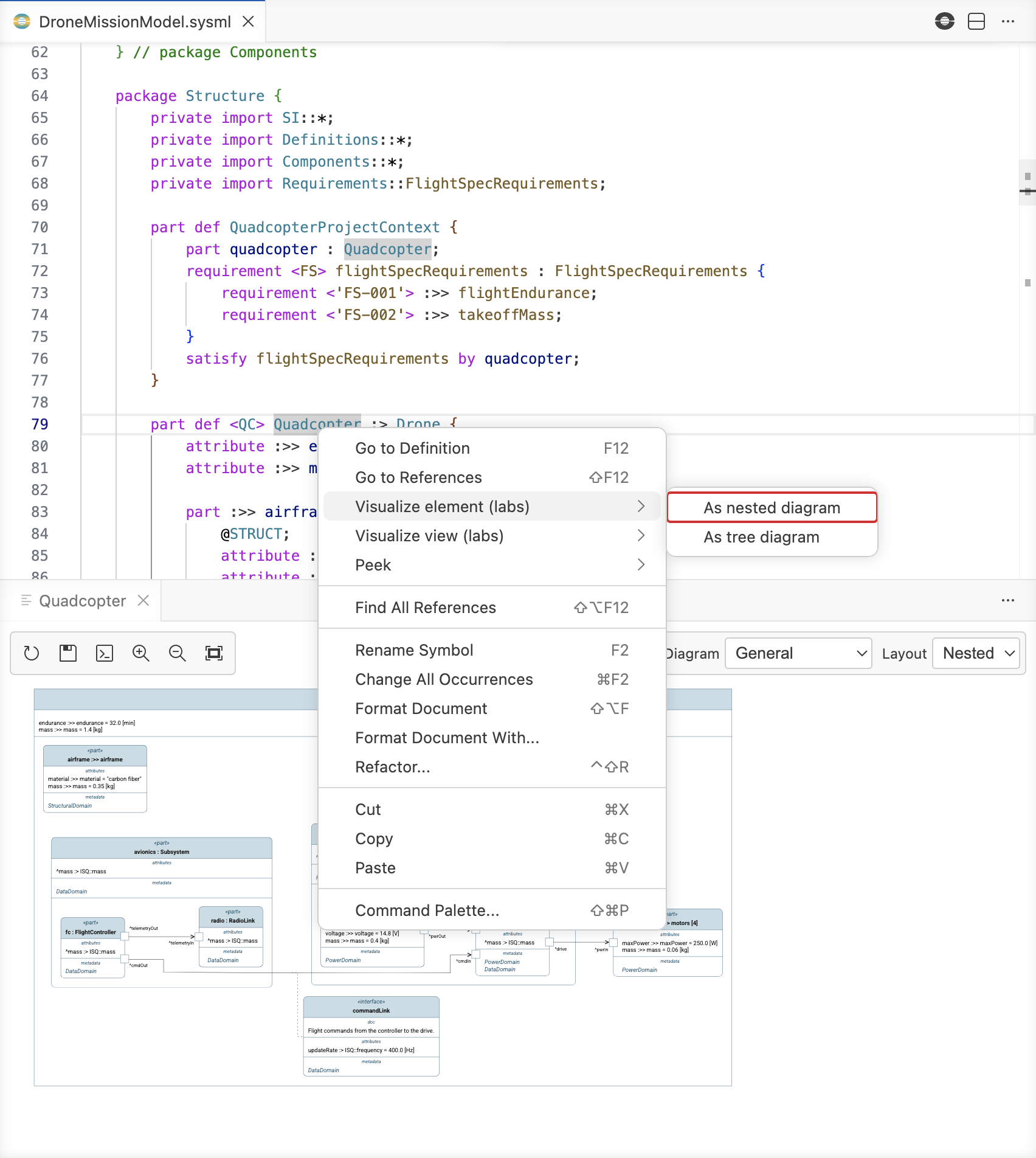
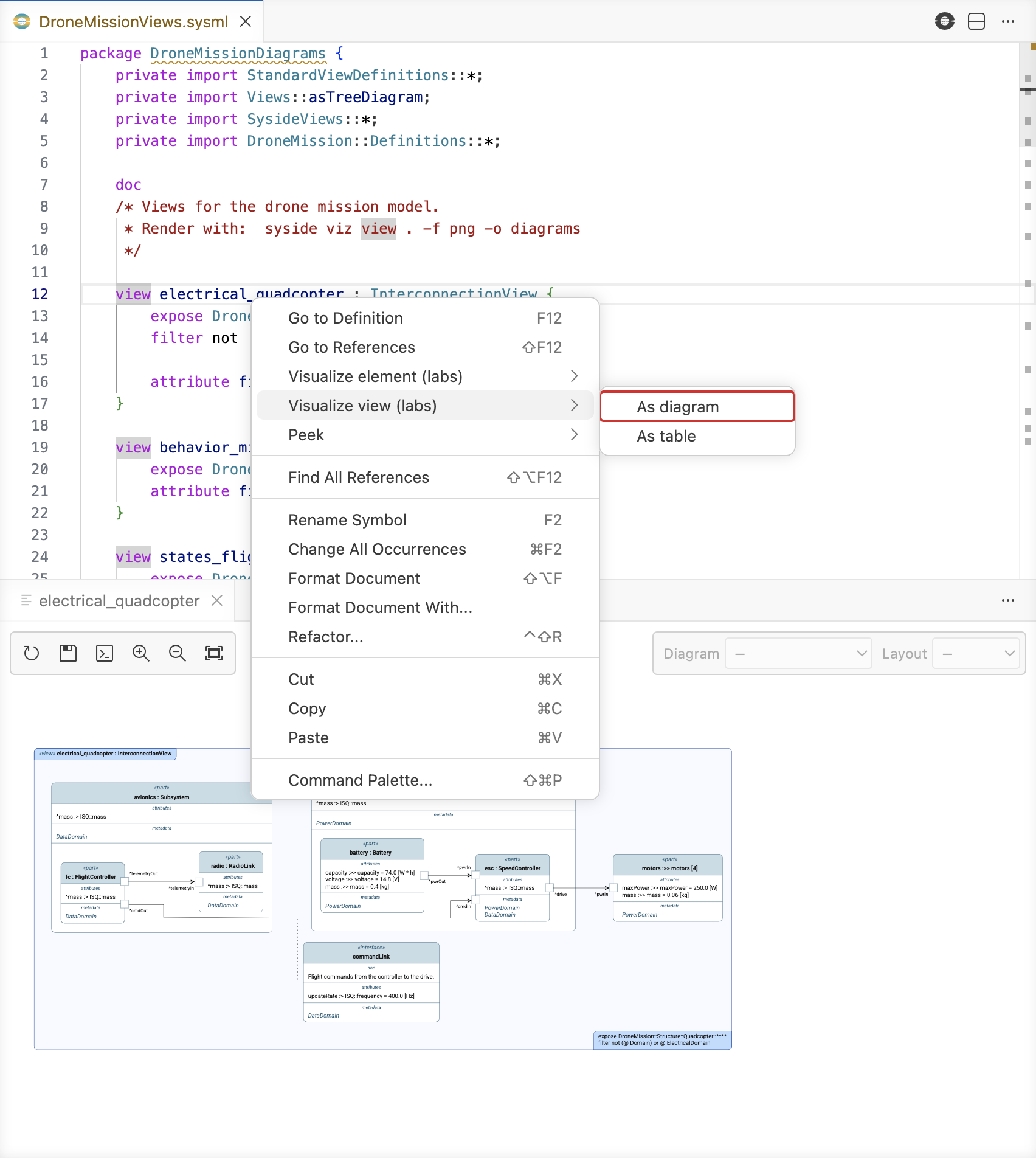
Visualize views - generates diagrams from SysML v2 view definitions in the model, scoped to the view’s exposed elements. Works with models split across multiple
.sysmlfiles. You can open it with:Keyboard shortcut: Ctrl/Cmd+Alt/Option+V
Right-clicking a view definition in the editor and choosing Syside: Visualize view → As diagram
The same submenu’s As table entry opens the view as a grid instead (Open from the editor).
See Select view elements for what a view exposes and filters, and Configure diagram views for the diagram kind and the attributes that shape it.