

Migrate pre-0.11 grid views
This page is for table views written against Syside versions before 0.11. If your
views already use columnFeature and featureRepresentation, nothing here applies.
Otherwise, each retired column type has a modern equivalent, and a hierarchical table
now declares its tree column explicitly.
Automated migration
Syside Modeler migrates a workspace for you. Views written against the pre-0.11 library keep rendering for now, but support for the old notation and this migration will eventually be discontinued, so migrate while both are available.
Prepare the workspace
Before starting the migration:
Resolve every model error and warning, including warnings such as
global-namespace-distinguishability.Save all open files.
Format your model files with
syside format, or with the “Format Document” command from the Command Palette (Ctrl/Cmd+Shift+P).Add
.syside/migration-backup-*/to your.gitignore. Modeler backs up your models there before migrating, and without this entry the backup copies show up in Git next to your real changes and make them harder to review. You can remove the entry after the migration.Commit your changes, including the
.gitignoreentry, so your Git working tree is clean.Connect to the internet so Modeler can download the
sysidePython library on the first run.
The migration uses the license key Modeler already has, so you don’t need to enter it.
Start the migration
Choose one of these ways to start:
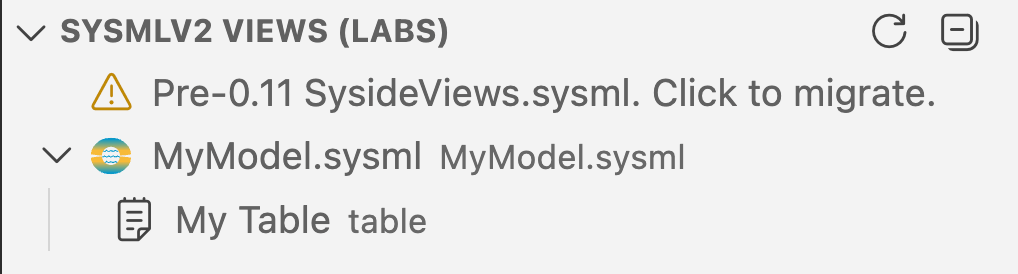
In the SysMLv2 Views panel, click the Pre-0.11 SysideViews.sysml. Click to migrate. notification at the top of the panel. When the panel lists no views, it shows a Migrate grid views button instead.
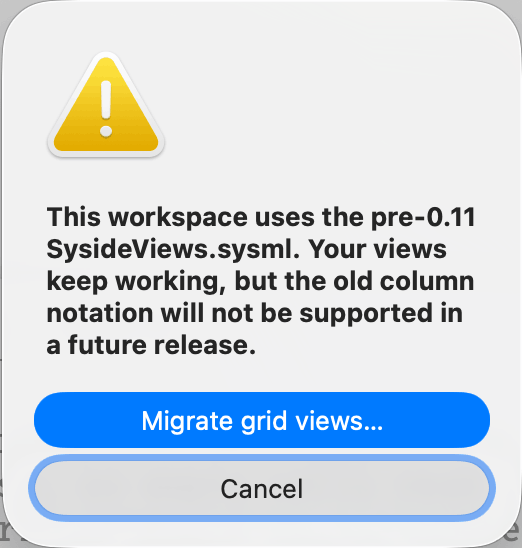
When you open a table or matrix view that uses the old notation, Modeler asks whether to migrate. Click Migrate grid views….
If you dismiss the prompt and open the view anyway, click Migrate grid views… on the warning banner.

Open the Command Palette (Ctrl/Cmd+Shift+P) and run “Syside Modeler: Migrate grid views to the 0.11 column notation”.
Modeler first runs a preview in a terminal named
Syside grid-view migration (preview). The preview doesn’t change any files. On the
first run, Modeler downloads the syside Python library, so output can take a while
to appear.
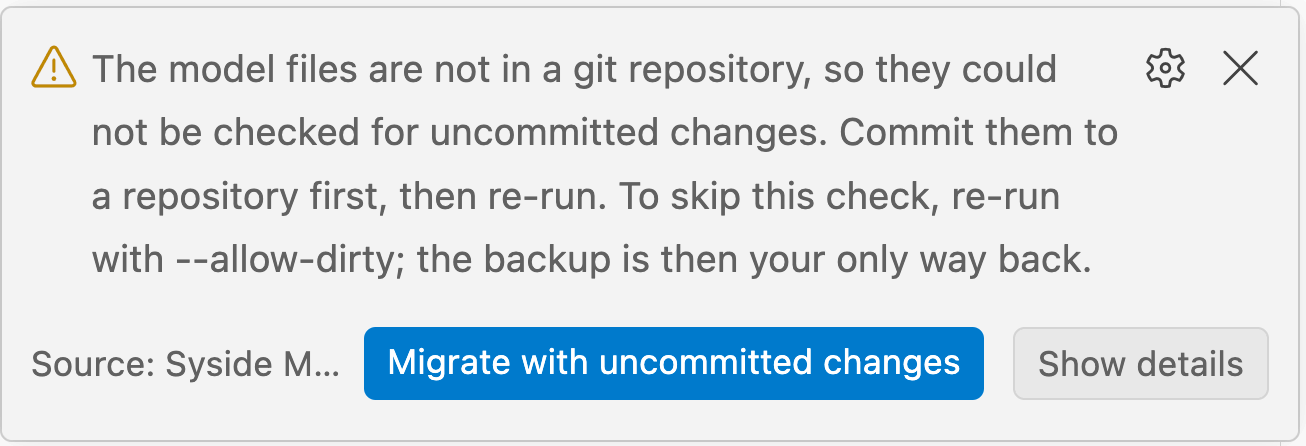
If the files have uncommitted changes, are outside a Git repository, or are unformatted, Modeler warns you and asks whether to continue. If you continue, Modeler still writes a backup, but you can’t use Git to undo the migration:
Known issue in Cursor
In Cursor, the Show Details, Show plan, Show report, and Show log buttons on the migration notifications do nothing. To read the same output, open the Output panel () and select “Syside Modeler” from its dropdown menu.
Review and accept
When the preview finishes, a notification shows the result. Show plan
opens a log listing each file and column the migration would change, with a note
wherever the new notation behaves differently. If the preview finds something it
can’t migrate automatically, such as a direct ContentView usage, it lists each case.
Fix them and run the migration again.
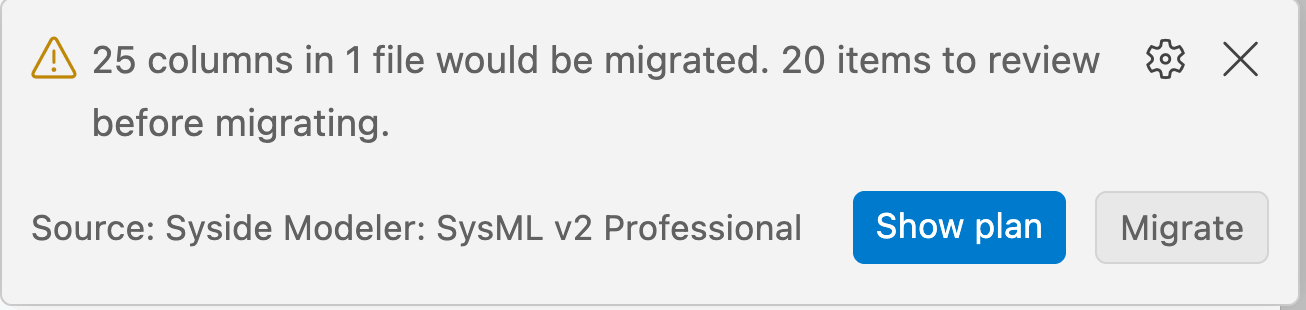
After reviewing the plan, click Migrate. Modeler backs up every file it
will touch to .syside/migration-backup-<timestamp>/ next to the model, rewrites the
columns, and replaces the workspace SysideViews.sysml with the 0.11 library. It then
runs two checks and restores every file from the backup if either one fails:
The reloaded model has any error or warning.
A table or matrix view shows something different from before. The migration exports every view before and after the rewrite to CSV and compares them. If the contents don’t match, Modeler reports “The migrated tables do not show what they showed before”.
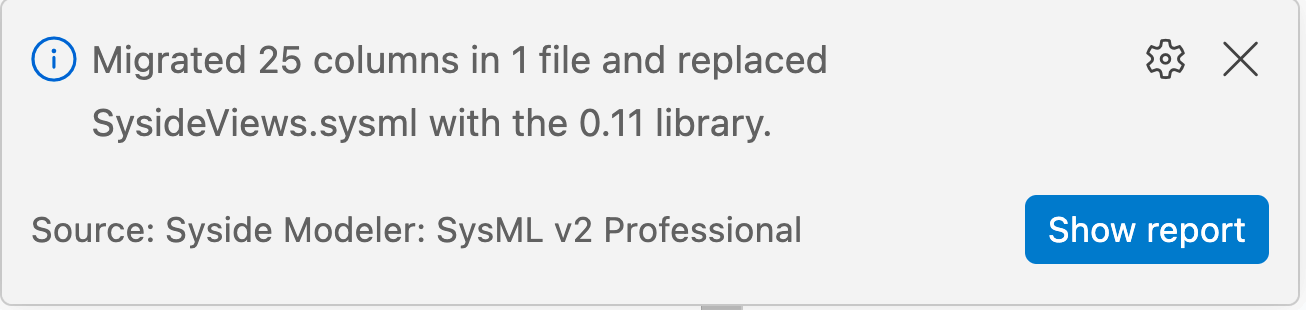
A successful migration reports the number of columns changed and offers a Show report button:
Note
If Modeler shows errors in .sysml files after a successful migration, they are usually
stale. Reload the window: open the Command Palette (Ctrl/Cmd+Shift+P) and
run “Developer: Reload Window”.
The migration script
Behind the scenes, the migration runs a Python script, syside_migrate_views.py,
which ships with the extension under bundled/migration/ in its install directory.
The script is provided for transparency: read it to see exactly how the migration
changes your models. It edits them only through the Syside Python API, never by
editing the text directly.
Each run opens a terminal that prints the full command, including the script’s path. If a migration fails, include that output when you contact Syside support.
Manual migration
Before version 0.11, Syside configured columns with a single featureToRender attribute
set to a ColumnType (CT) enum member, parameterized through nested attributes. That
API is retired: the ColumnType enum no longer exists in the SysideViews
library, and views written against it produce name-resolution errors after the
library update. Each old column type maps onto a chain / representation pair. The simple column types, those without
nested attributes, map directly:
<0.11 |
>=0.11 column definitions |
|---|---|
|
attribute :>> featureRepresentation
    :> ColRep::declaredName;
|
|
attribute :>> featureRepresentation
    :> ColRep::declaredShortName;
|
|
attribute :>> featureRepresentation
    :> ColRep::name;
|
|
attribute :>> featureRepresentation
    :> ColRep::shortName;
|
|
attribute :>> featureRepresentation
    :> ColRep::qualifiedName;
|
|
attribute :>> featureRepresentation
    :> ColRep::documentation;
|
|
// the requirement ID is the declared short name
attribute :>> featureRepresentation
    :> ColRep::declaredShortName;
|
|
:>> columnFeature = Owner(baseViewElement);
// qualifiedName is the default representation
|
|
:>> columnFeature = HeritageList(baseViewElement);
attribute :>> featureRepresentation
    :> ColRep::name;
|
Parameterized column types
The remaining column types were parameterized through attributes nested inside
featureToRender. Each case below shows a complete column before and after the
migration.
attributeValue
Before:
view Priority :> columnViews {
    attribute :>> featureToRender = CT::attributeValue {
        attribute attributeName = "priority";
    }
}
After:
view Priority :> columnViews {
    :>> columnFeature = NamedUsage(
        baseViewElement,
        "priority",
        NameType::name,
        UsageKind::attributeUsage
    );
    attribute :>> featureRepresentation :> ColRep::featureValue;
}
namedFeatureValue
Before:
view Engine :> columnViews {
    attribute :>> featureToRender = CT::namedFeatureValue {
        attribute featureName = "engine";
    }
}
After:
view Engine :> columnViews {
    :>> columnFeature = NamedUsage(
        baseViewElement,
        "engine",
        NameType::name
    );
    attribute :>> featureRepresentation :> ColRep::featureValue;
}
specificDocumentation
The documentationName parameter moves onto the representation.
Before:
view Rationale :> columnViews {
    attribute :>> featureToRender = CT::specificDocumentation {
        attribute documentationName = "rationale";
    }
}
After:
view Rationale :> columnViews {
    attribute :>> featureRepresentation :> ColRep::specificDocumentation {
        attribute :>> documentationName = "rationale";
    }
}
The ConstraintType (ConT) enum is retired along with the constraintLanguage
column type. Each of its four members has its own case below. In all four cases, the
value of the constraintLanguage attribute moves onto the 'language' representation
as languageName.
constraintLanguage with ConT::required
Before:
view Constraint :> columnViews {
    attribute :>> featureToRender = CT::constraintLanguage {
        attribute constraintName = "RC1";
        attribute constraintType = CT::CL::ConT::required;
        attribute constraintLanguage = "English";
    }
}
After:
view Constraint :> columnViews {
    :>> columnFeature = RequirementConstraintsFirst(
        baseViewElement,
        RequirementConstraintKindSV::required
    );
    attribute :>> featureRepresentation :> ColRep::'language' {
        attribute :>> languageName = "English";
    }
}
constraintLanguage with ConT::assumed
Before:
view Constraint :> columnViews {
    attribute :>> featureToRender = CT::constraintLanguage {
        attribute constraintName = "AC1";
        attribute constraintType = CT::CL::ConT::assumed;
        attribute constraintLanguage = "English";
    }
}
After:
view Constraint :> columnViews {
    :>> columnFeature = RequirementConstraintsFirst(
        baseViewElement,
        RequirementConstraintKindSV::assumed
    );
    attribute :>> featureRepresentation :> ColRep::'language' {
        attribute :>> languageName = "English";
    }
}
constraintLanguage with ConT::asserted
Before:
view Constraint :> columnViews {
    attribute :>> featureToRender = CT::constraintLanguage {
        attribute constraintName = "maxAltitude";
        attribute constraintType = CT::CL::ConT::asserted;
        attribute constraintLanguage = "English";
    }
}
After:
view Constraint :> columnViews {
    :>> columnFeature = NamedUsage(
        baseViewElement,
        "maxAltitude",
        NameType::name,
        UsageKind::assertedConstraintUsage
    );
    attribute :>> featureRepresentation :> ColRep::'language' {
        attribute :>> languageName = "English";
    }
}
constraintLanguage with ConT::plain
Before:
view Constraint :> columnViews {
    attribute :>> featureToRender = CT::constraintLanguage {
        attribute constraintName = "maxAltitude";
        attribute constraintType = CT::CL::ConT::plain;
        attribute constraintLanguage = "English";
    }
}
After:
view Constraint :> columnViews {
    :>> columnFeature = NamedUsage(
        baseViewElement,
        "maxAltitude",
        NameType::name,
        UsageKind::constraintUsage
    );
    attribute :>> featureRepresentation :> ColRep::'language' {
        attribute :>> languageName = "English";
    }
}
RequirementConstraints* finds a constraint by its role in the requirement
(require or assume), not by its name, so the required and assumed cases drop
constraintName. This fits the usual single, unnamed require or assume block. If
the constraint has a name, you can also select it with NamedUsage, because it is an
ordinary constraint usage.
Usage kinds now match exactly, which changes two of these mappings:
UsageKind::constraintUsageno longer matches anassert constraint. If your view relied on that, useUsageKind::assertedConstraintUsage, or setincludeSubtypestotrue.UsageKind::constraintUsagenow also matches therequireandassumeconstraints inside a requirement, since those are ordinary constraint usages too. Outside requirements, it matches the same constraints as before.
The worked examples in Common patterns show the resulting columns in full.
Hierarchical tables
Before 0.11 a hierarchical table view had no dedicated tree column: whichever column
was declared first implicitly carried the tree. Now the tree column is explicit.
Every HierarchicalTableView owns a built-in hierarchicalColumn view usage, and the old first column becomes a
redefinition of it: :>> hierarchicalColumn instead of the :> columnViews subset
used for ordinary columns.
Before:
view myHierarchy : TVD::HierarchicalTableView {
    expose MyModel::RootRequirement;

    // the first column implicitly carried the tree
    view ID :> columnViews {
        attribute :>> featureToRender = CT::declaredShortName;
    }
    view Documentation :> columnViews {
        attribute :>> featureToRender = CT::documentation;
    }
}
After:
view myHierarchy : TVD::HierarchicalTableView {
    expose MyModel::RootRequirement;

    // the tree column is explicit: redefine hierarchicalColumn
    view ID :>> hierarchicalColumn {
        attribute :>> featureRepresentation :> ColRep::declaredShortName;
    }
    view Documentation :> columnViews {
        attribute :>> featureRepresentation :> ColRep::documentation;
    }
}
If you leave the first column as a plain columnViews subset, it no longer shows the
tree. Modeler adds the built-in tree column in front of it, showing each element’s
declared name, and your old first column appears again as a regular column. If the
old first column only showed the declared name, delete it and keep the default
hierarchicalColumn.