

Use diagram panels
A diagram opens in a panel beside the model it came from. What it draws can be a single element, a whole file, or a view, depending on the entry point you used: see Open a diagram for the three of them. This page covers what the panel offers once a diagram is on screen, which is the same whichever of the three it came from. For writing views, see Select diagram elements and Configure diagram views.
Controls
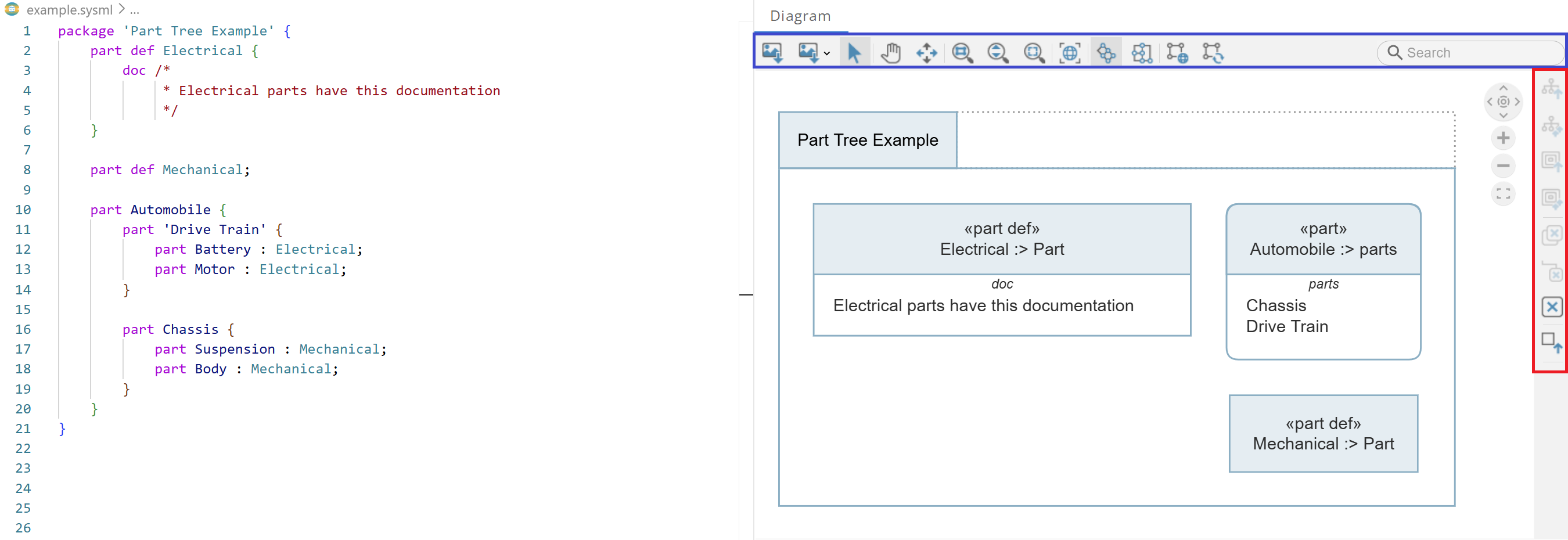
Modeler in action:
Note
Refreshing resets any customizations, such as element layout or visibility settings.
In the diagram view, you can find many different controls that help you navigate and interact with the model. They are organized into two different panels:
View tools (Blue): The horizontal panel at the top containing tools such as “Select”, “Zoom”, “Pan”, “Zoom in”, “Zoom out” and “Fit to screen”.
Context tools (Red): The right-side panel containing tools such as “Show descendants”, “Remove element”, and “Go to source”.
View tools
Use the View Tools panel to move around the diagram and lay it out. Its controls run left to right:

Save As Image - Export current diagram as an image file
Select - Select elements (blue highlight). Multi-select with drag or Ctrl/Cmd+Click
Pan - Move diagram view with left mouse button
Navigate links - Click connections to jump between elements
Marquee zoom - Zoom to area by drawing rectangle
Interactive zoom - Zoom in/out with mouse up/down
Zoom fit - Adjust view to show entire diagram
Overview - Toggle mini-map for navigation in large diagrams
Hierarchical Layout - Arrange diagram in tree structure
Orthogonal Layout - Arrange diagram in orthogonal structure
Global Layout - Auto-arrange entire diagram
Incremental Layout - Auto-arrange while preserving relative element positions
Search - Find and navigate to diagram elements
Also, double-clicking on white space inside of an element (outside of the name box) will “drill down” into it. Similarly, double-clicking on the white space outside of the element moves the view back up one level.
Context tools
The context tools panel acts on one element at a time. On macOS it appears on the right side of the screen; on Windows and Linux, right-click an element to reach it.

Load Children as Tree - Display immediate children of selected elements
Load All Descendants as Tree - Display all descendants (depends on model complexity, use with caution on large models with 10k+ rows of code)
Load Children as Nested Tree - Display immediate children in nested format
Load All Descendants as Nested Tree - Display all descendants in nested format (depends on model complexity, use with caution on large models with 10k+ rows of code)
Remove Selected - Hide selected elements (preserves descendants)
Remove All Descendants - Hide descendants of selected elements
Remove All - Clear all elements from the diagram
Go To Source Definition - Jump to and highlight element definition in model file
The viewer requires Java, and Modeler detects it automatically. See Tom Sawyer SysMLv2 Viewer if it is installed somewhere Modeler does not find it.