
Install Editor
Syside Editor installs from the VS Code Marketplace or the Open-VSX Marketplace in a few clicks, and there is no license key to enter: it is free. If you already have Syside Modeler, you have everything Editor offers and can skip this page.
Minimum requirements
System requirements:
Windows 10+ x64 or arm64 (for older versions, install Windows UCRT)
System requirements:
macOS Big Sur (11.0+, arm64)
macOS High Sierra (10.13+, x64)
System requirements:
Linux x64 distribution with GNU C Library
glibc >= 2.31
Note
Some Linux distributions like Alpine and Chimera do not include
glibcand may not support running applications that require it.How to check your glibc version
Using gcc:
$(cat $(gcc -print-file-name=libc.so) | grep -P '/[^\s]+/libc\.so\.[\w]+' -o)
You should see output similar to:
GNU C Library (GNU libc) stable release version 2.40Using Python:
python -c "import platform; print(platform.platform())"
You should see output similar to (glibc should be printed at the end):
Linux-6.13.7-3-cachyos-x86_64-with-glibc2.41
Development environment:
Visual Studio Code (recommended)
Network connectivity:
Internet connection is required for installation, updates and usage
Note
Syside Editor periodically validates the license and collects usage data. See What data we collect for exactly what is sent and what can be turned off.
Syside Editor can be used offline for short periods of time, but a fully network-isolated solution requires an offline license available on the Business plan.
Syside Editor is free to use: its license is provisioned automatically, so you do not need to obtain or enter a license key. See Licensing for details.
Install extension
Open your editor (Visual Studio Code, Cursor, VSCodium, or other compatible editor)
Open Extensions view (click Extensions in left sidebar or press Ctrl/Cmd-Shift-X)
In the search bar, type Syside Editor
Click Install on Syside Editor by Sensmetry (identifier sensmetry.syside-editor)
Syside Editor is available on both VS Code Marketplace and Open-VSX Marketplace.
Download Syside Editor extension from Open-VSX Marketplace for your platform
Open Visual Studio Code or your preferred VSCodium-based editor
Open VSIX installation window:
via Extensions view:
Click Extensions in left sidebar or press Ctrl/Cmd-Shift-X
Drag and drop the downloaded
sensmetry.syside-editor-*.vsixfile to the Extensions panel (alternatively, click … and Install from VSIX…)
via Command Palette:
Open the Command Palette Ctrl/Cmd-Shift-P
Type Extensions: Install from VSIX…
Select downloaded
sensmetry.syside-editor-*.vsixfile and click Install
Warning
Extensions installed from VSIX files do not receive automatic updates. To update Syside Editor, see Update Editor section.
Verify installation
Once Syside Editor is installed, follow these steps to quickly verify it is working as expected.
Create a new SysML file named
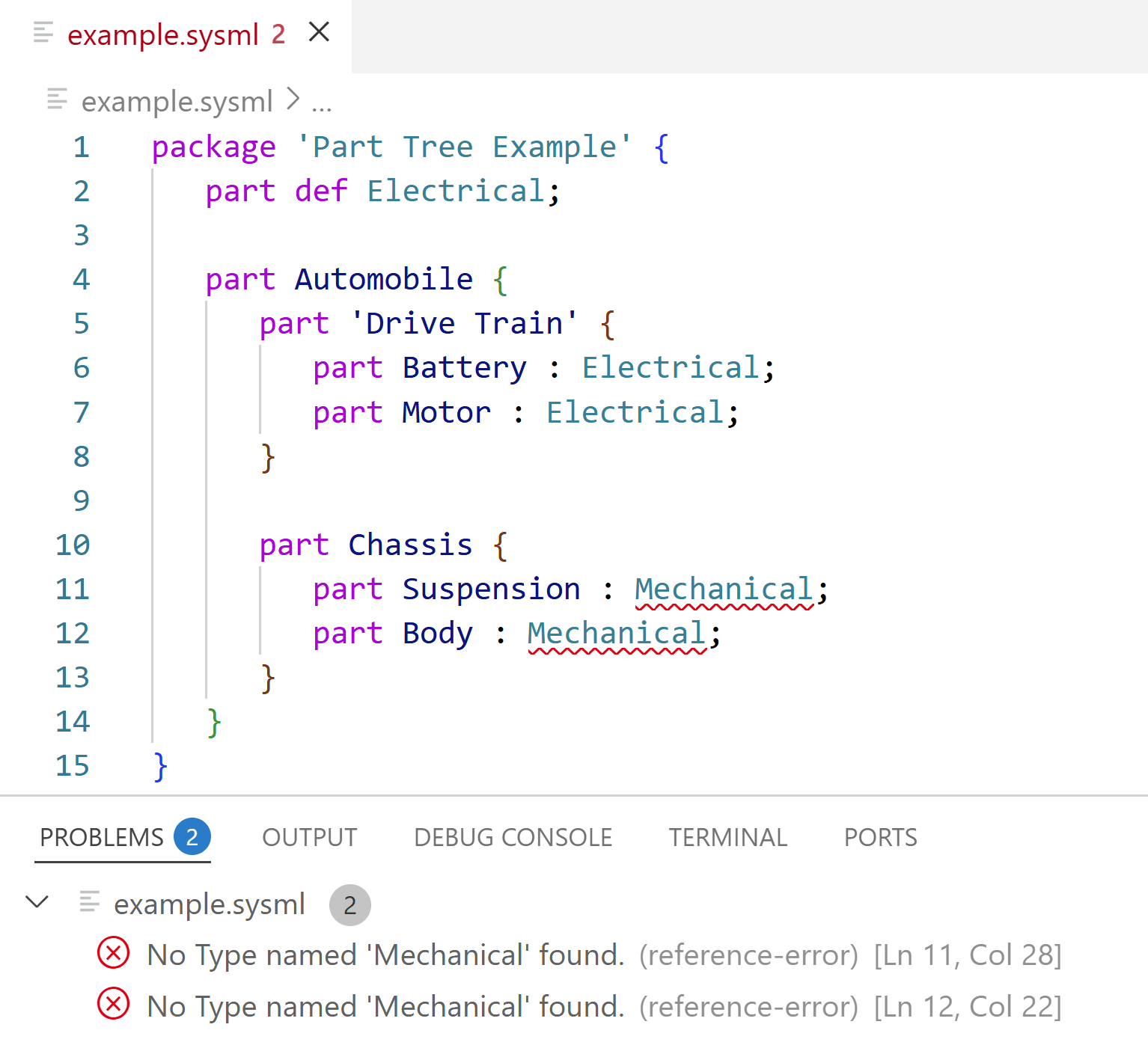
example.sysmlwith the following content:package 'Part Tree Example' { part def Electrical; part Automobile { part 'Drive Train' { part Battery : Electrical; part Motor : Electrical; } part Chassis { part Suspension : Mechanical; part Body : Mechanical; } } }
Open
example.sysmlfile in your editorYou should see highlighted syntax, and two errors marked in the editor and listed in the Problems panel (Ctrl/Cmd+Shift+M). This is because
Mechanicalpart definition is missing.
Correct the error by updating the
example.sysmlfile:package 'Part Tree Example' { part def Electrical; part def Mechanical; part Automobile { part 'Drive Train' { part Battery : Electrical; part Motor : Electrical; } part Chassis { part Suspension : Mechanical; part Body : Mechanical; } } }
The errors should disappear.
Save the file (Ctrl/Cmd+S). The language server reads the saved file, so unsaved changes will not be reflected.
If something does not work as expected, check the Troubleshooting page for potential solutions.
Update Editor
By default, your editor updates extensions automatically. You only need to reload the extension after the update completes.
If you are not receiving automatic updates:
Open Extensions view (click Extensions in left sidebar or press Ctrl/Cmd-Shift-X)
Find Syside Editor in the list
Verify the Auto Update checkbox is enabled
Extensions installed from VSIX files do not receive automatic updates.
To update, download the latest version and repeat the Install extension steps above.
Tip
Your settings will be preserved during the update.
What’s next?
After successfully installing Syside Editor, continue to the following pages to learn more:
Continue to Write your model to learn about available features
Learn SysML v2 with Advent of SysML v2, a free 25-lesson course with videos, blog posts, and hands-on exercises